
How to convert PDF to Excel
PDF files are great for sharing documents because they preserve formatting across devices. However, editing tables or working with data inside a PDF can be difficult. Converting the file to Excel makes it easier to sort information, calculate totals and update data for reports or presentations.
Table of contents
- 1. Method 1: Use Lumin’s free PDF to Excel converter
- 2. Method 2: Use Microsoft Excel’s built-in PDF import
- 3. How to convert PDF to Excel without losing formatting
- 4. Frequently asked questions
Share this post
This guide explains three reliable methods for converting PDF files to Excel. Each option helps preserve your tables, rows and formatting as accurately as possible. We’ll start with the quickest and easiest method first.
Method 1: Use Lumin’s free PDF to Excel converter
The fastest way to convert a PDF to Excel is with Lumin’s free PDF to Excel converter. It works directly in your browser, so there’s no need to install additional software. The tool quickly extracts tables and converts them into an editable spreadsheet.
Here’s how to convert your file:
- Open Lumin’s free PDF to Excel converter and upload your PDF file.
- Select “Excel Document” from the format dropdown menu.
- Select “Save on your computer” or save the Excel file directly to your Google Drive.
Method 2: Use Microsoft Excel’s built-in PDF import
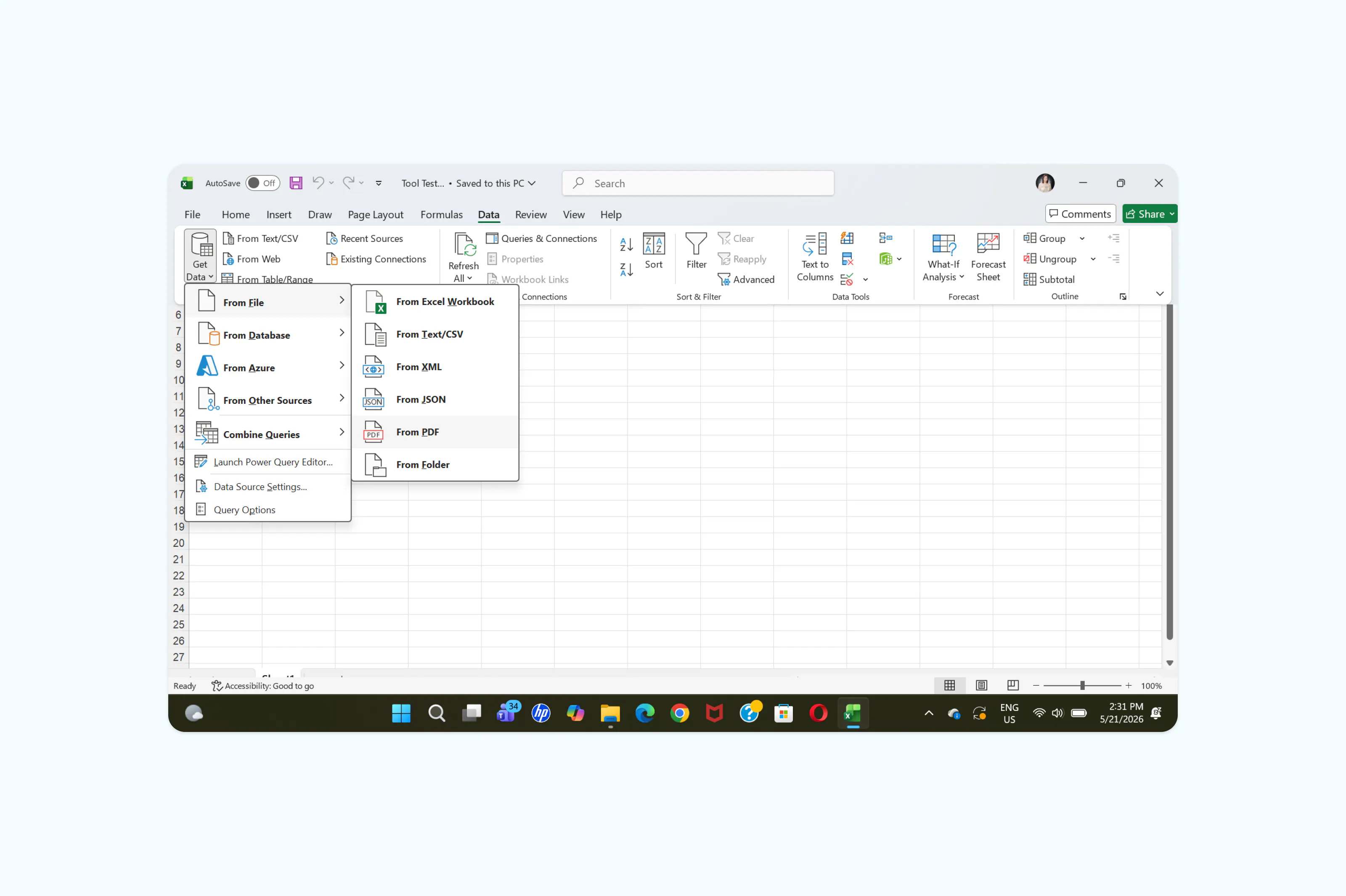
Microsoft Excel allows you to import data directly from PDF files. This method is useful when you want more control over which tables or sections to import into your spreadsheet.
Here’s how to do it:
- Open Microsoft Excel.
- Create a new blank workbook.
- Go to “Data” > “Get Data” > “From File” > “From PDF.”
- Select the PDF file you want to convert.
- Choose the table or data range you want to import from the Navigator panel.
- Click “Load” to insert the data into your spreadsheet.
How to convert PDF to Excel without losing formatting
Formatting issues can happen during conversion, especially with scanned PDFs or complex tables. Here are a few tips to help preserve your spreadsheet layout:
- Use OCR for scanned PDFs. OCR technology recognizes text inside image-based PDFs and converts it into editable spreadsheet data.
- Check merged cells and tables. Some PDFs contain merged rows or columns that may shift during conversion. Review the spreadsheet after exporting.
- Use clean, high-quality PDFs. Blurry scans or low-resolution files can cause missing or inaccurate text.
- Review formulas and number formatting. Converted spreadsheets may lose formulas, currency formatting or date formats. Double-check important values after conversion.
Taking a few minutes to review your spreadsheet can help prevent missing data and formatting errors.
Frequently asked questions
Can I convert a scanned PDF to Excel?
Yes. You can use OCR-supported tools like Lumin’s PDF to Excel converter to extract text and tables from scanned PDFs. OCR converts image-based text into editable spreadsheet data.
Can I convert multiple PDF pages into one Excel file?
Yes. Most PDF to Excel tools combine all detected tables and pages into a single spreadsheet workbook. You may need to reorganize the sheets depending on the original PDF layout.
Why does my PDF table look different in Excel?
Some formatting changes can happen during conversion, especially with complex layouts, merged cells or scanned documents. Using a high-quality PDF and reviewing the exported spreadsheet usually helps fix these issues.

Share this post