
How to have a PDF read out loud to you
Need to listen to your PDFs instead of reading them? Whether you're multitasking, dealing with eye strain, or simply prefer audio, here are proven methods to make any PDF speak to you.
Table of contents
- 1. Method 1: Use Lumin as your PDF reader
- 2. Method 2: Built-in computer screen readers
- 3. Method 3: Mobile screen readers
- 4. Frequently asked questions
- 5. Start listening to your PDFs today
Share this post
Sometimes reading isn't convenient. You may want to catch up on reports during your commute, or perhaps staring at screens all day is taking its toll. Converting PDFs to audio lets you absorb information while doing other things.
The good news? You don't need expensive software. From a browser-based tool to built-in features on your device, you have options. Let's explore each method so you can start listening to your PDFs today.
Method 1: Use Lumin as your PDF reader
Lumin’s PDF platform includes its own screen reader, giving you a powerful combination of PDF management and text-to-speech capabilities.
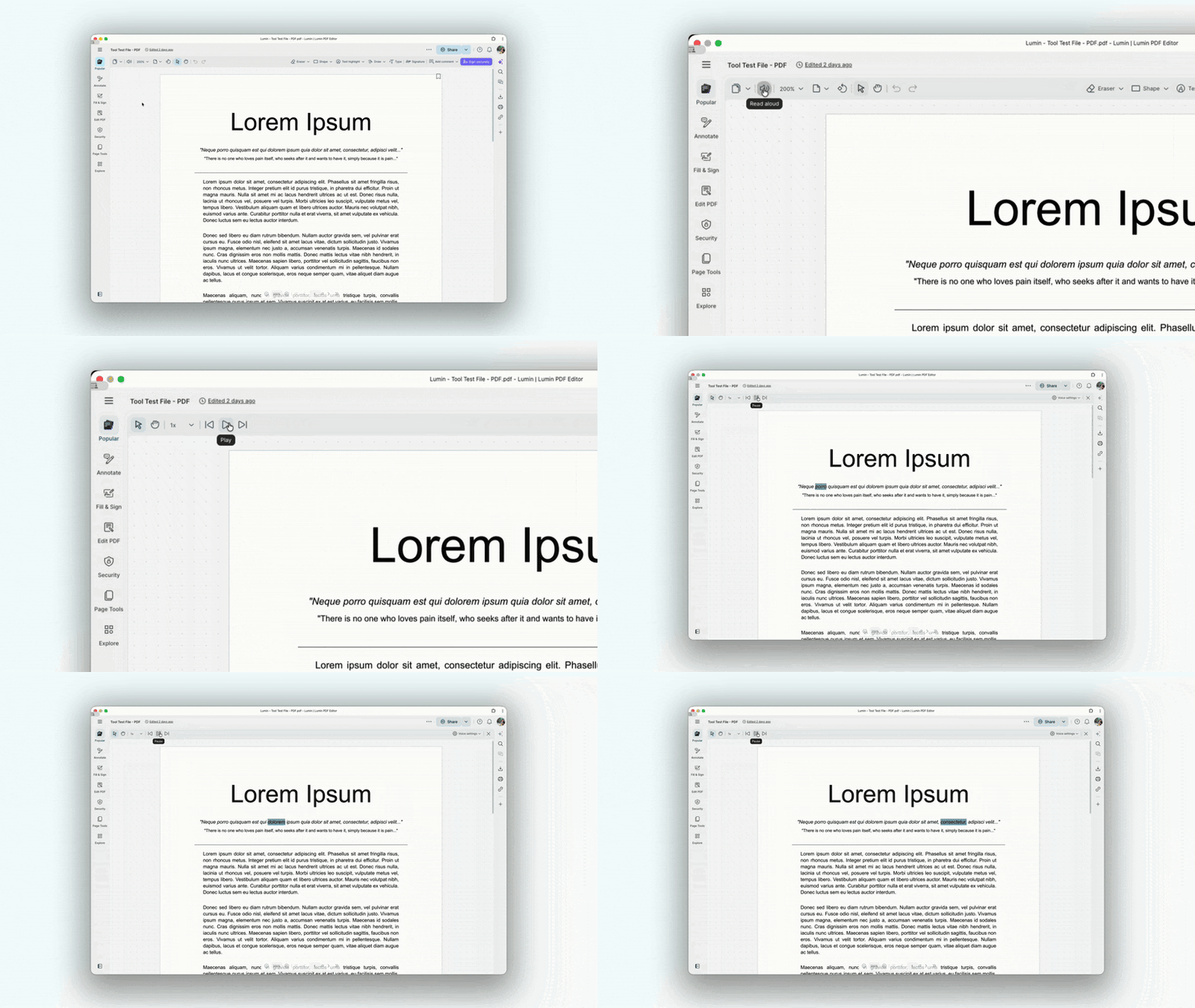
How to have PDFs read aloud with Lumin:
- Open the Lumin PDF Reader tool and upload your PDF document
- From the toolbar, select the “Read aloud” option (find the speaker button).
- Click the “Play” button to initiate the reading of your document’s contents.
- Press the “Previous” or “Next” button to go back or forward a sentence.
- Select this option to adjust the “reading speed” to your preference.
Now you can listen to your PDF being read aloud and follow along hands-free.
When to use this method:
• Annotating or editing PDFs
• Saving or sharing PDFs after listening
• Using a browser-based solution without installing software
Method 2: Built-in computer screen readers
Every major operating system includes free accessibility features that read PDFs aloud.
For Windows
Quick setup:
- Press Ctrl + Windows logo key + Enter anytime to quickly toggle Narrator.
- Click “Use Narrator” and start listening. With Narrator active, you can use several key commands to control reading on your screen. Press Caps Lock + Ctrl + Home to start reading from the top, or Caps Lock + M to continue reading from your current location. If you want to pause or resume reading, simply press the Control key. To move through items, use Caps Lock + Right Arrow for the next item and Caps Lock + Left Arrow for the previous one. Finally, you can press Caps Lock + Spacebar to activate an item, similar to clicking it.
- Now you can listen to your Windows PC read the screen aloud and follow along hands-free.
For Mac
Quick setup:
- Press “Command + F5” (or “Fn + Command + F5”) anytime to quickly toggle VoiceOver.
- Click “Use VoiceOver” and start listening. With VoiceOver active, press “Control + Option + A” (or “Caps Lock + A”) to start reading from the top of the screen. Press “Control + Option + Shift + A” (or “Caps Lock + Shift + A”) to read continuously from the current location. Use the “Control” key to pause or resume reading. Use VO + Right Arrow to move to the next item, VO + Left Arrow to move to the previous item. Press VO + Shift + Down Arrow to interact with an item (enter a text field, open a menu). Press VO + Shift + Up Arrow to stop interacting.
Now you can listen to your Mac read the screen aloud and follow along hands-free.
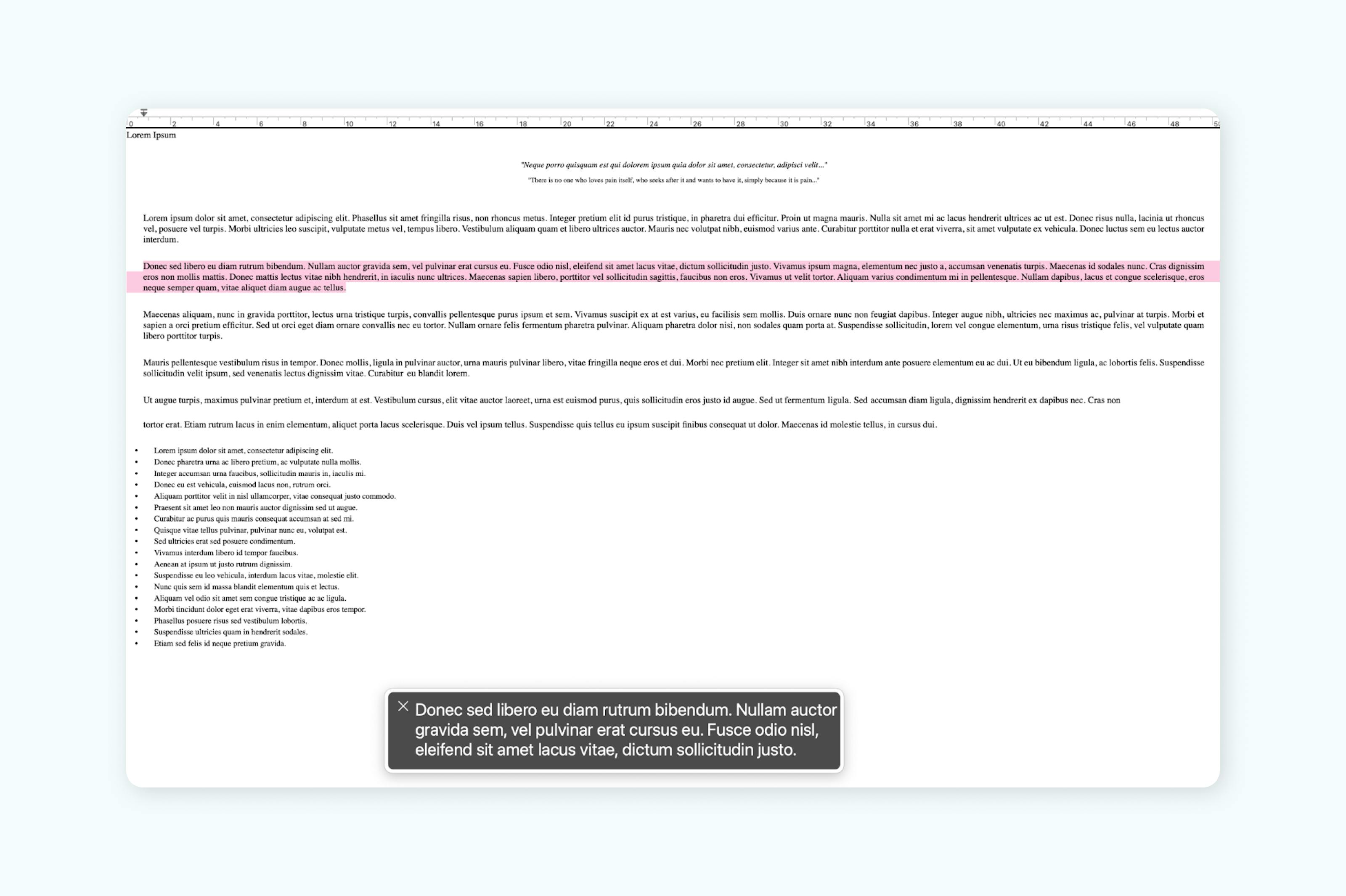
Note: The default VO keys are Control + Option. “VO + Right Arrow” means hold “Control + Option, then press Right Arrow”. You can also set Caps Lock as VO in VoiceOver Utility (press VO + F8 to open).
When to use this method:
• Multitasking while listening to content
• Navigating your device without a mouse
Method 3: Mobile screen readers
Your phone or tablet can read PDFs anywhere.
For iPhone/iPad
Quick setup:
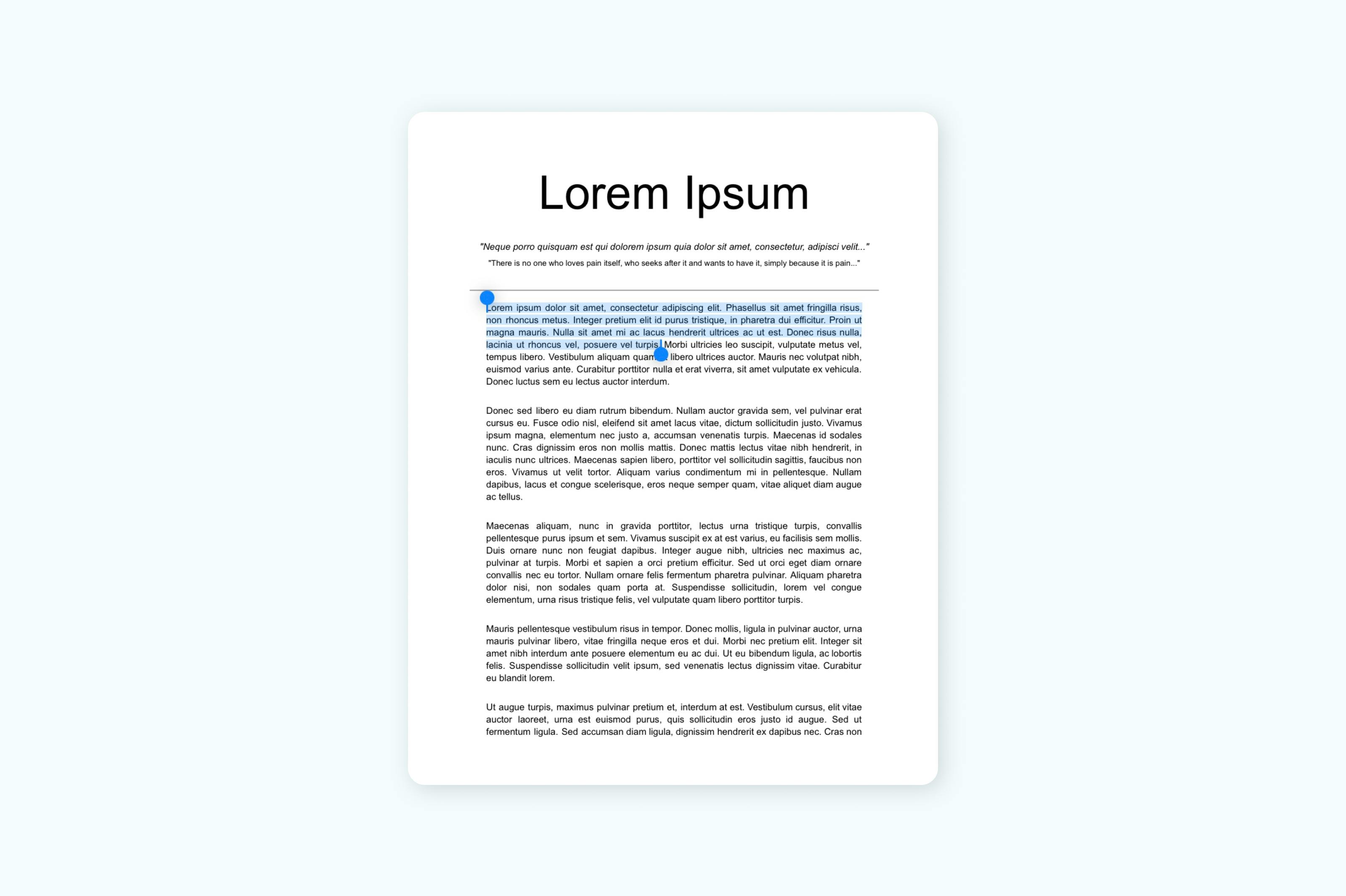
- Go to “Settings > Accessibility > Spoken Content.”
- Turn on “Speak Screen.”
- Open your PDF and highlight the text you want to read aloud.
- Tap “Speak.”
- Now your iPhone will read the PDF to you.
For Android
Quick setup:
- Go to “Settings > Accessibility > Select to Speak.
- Turn on the feature and open your PDF.
- Tap the Accessibility button and select the text you want read aloud.
- Now your Android will read the PDF to you.
When to use this method:
• Reading on the go
• No computer access
• Quick document review
Frequently asked questions
Why won’t my screen reader read this PDF?
Some PDFs are scanned images instead of text. Screen readers can only read text-based PDFs. Make sure your file contains actual text, not just images.
Can I adjust the reading speed?
Yes. Most screen readers let you control the speed. In your screen reader settings, look for options like speech rate or reading speed. Start at a normal pace and adjust until it feels comfortable.
Do I need the internet to listen to PDFs?
Lumin requires internet access to load PDFs, but once loaded, your device’s screen reader works offline. Built-in screen readers on devices always function offline.
What’s the best free option?
Using Lumin with your device’s built-in screen reader offers the best free experience. You get Lumin’s PDF tools along with your system’s text-to-speech features.
Can I save the audio?
Built-in screen readers don’t save audio directly. To create audio files, you’ll need dedicated apps with export features.
Start listening to your PDFs today
Making your PDFs speak doesn't have to be complicated. Whether you use Lumin's browser-based tools or your device's built-in features, you can transform any PDF into audio within minutes.
Start with the method that fits your workflow best. If you're already using Lumin to edit or manage PDFs, adding screen reader functionality is seamless. Or explore your device's accessibility features for instant audio playback wherever you are.
Remember: the best method is the one you'll actually use. These techniques will help you save your eyes, multitask effectively, and make your PDFs work the way you need them to.

Share this post