
How to merge PDFs
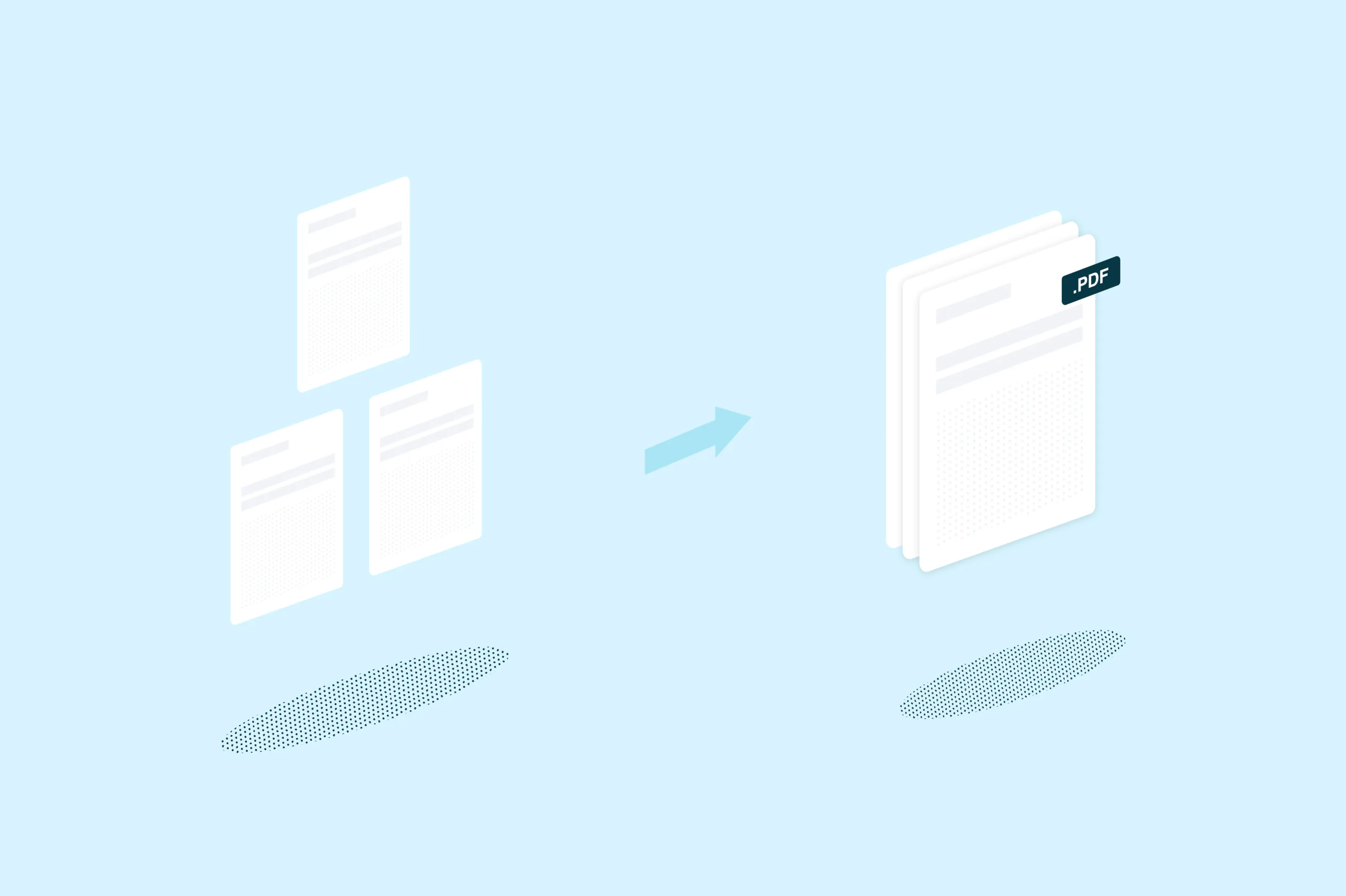
Need to combine multiple PDFs into one document? This guide covers three simple methods to merge your PDF files, whether you're working online, on a Mac or on Windows.
Table of contents
- 1. Method 1: Use Lumin's online merge tool
- 2. Method 2: Use Preview on Mac
- 3. Tips for merging PDFs without issues
- 4. Frequently asked questions
- 5. Explore more PDF tools
Share this post
Merging PDFs is one of those tasks that sounds like it should be simple, but often isn't. Maybe you've scanned a contract in sections, received separate report chapters or need to bundle invoices into a single file. Whatever the reason, you just want everything in one clean document.
The good news is that you don't need expensive software to get it done. This guide walks you through three reliable ways to merge PDF files, starting with the fastest option.
Method 1: Use Lumin's online merge tool
The simplest way to combine PDFs is with a free, browser-based tool. Lumin's Merge PDF tool lets you upload multiple files and merge them into one document in seconds, with no software to install.
Here's how to merge your PDFs with Lumin:
- Open Lumin’s free Merge PDF tool and upload the documents to combine.
- Drag and drop the files directly into the Upload file area.
- Now, you can rearrange the files directly in the upload area by dragging and dropping them into your preferred order.
- Click “Merge all” to combine the files into a single PDF.
- After uploading, Lumin will open the file in its web browser.
- Sign in and click Download to save the merged PDF or edit the document before downloading.
Note: Your merged PDF is ready to share, print or archive. The tool also works for combining more than two files at once, so you can merge an entire batch of documents in one go. If you need to rearrange pages after merging, Lumin's PDF tool also lets you choose the position of the documents before merging them into the final document.
Method 2: Use Preview on Mac
If you're on a Mac, you can merge PDFs using Preview, the built-in document viewer. This method doesn't require any downloads or third-party tools, making it a convenient option for macOS users.
Here's how to do it:
- Open the first PDF in Preview.
- Click "View" in the menu bar, then select "Thumbnails" to show the page sidebar.
- Select the page thumbnail where you want to insert the second PDF.
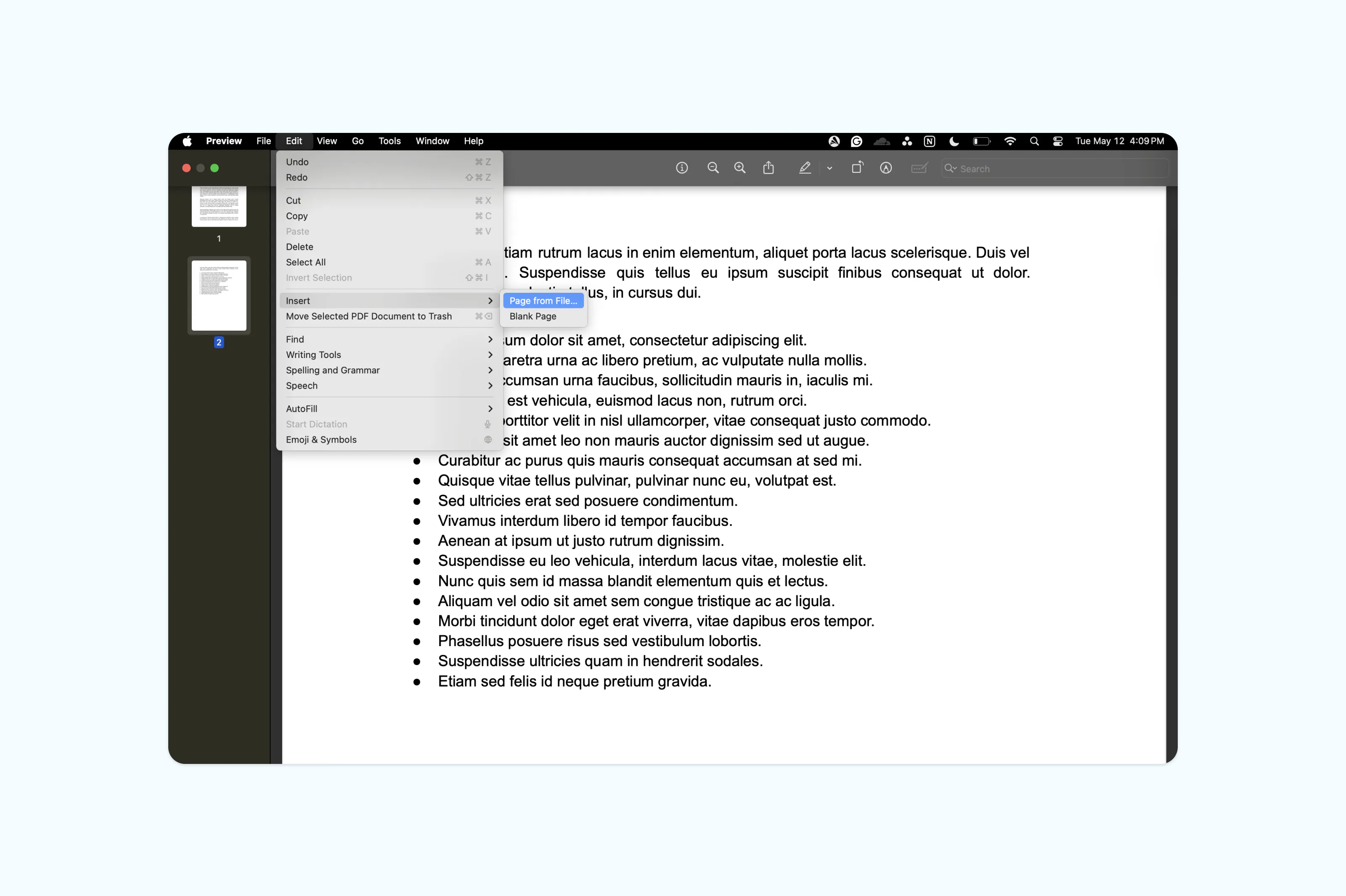
- Click "Edit" in the menu bar, then choose "Insert" > "Page from File."
- Select the PDF you want to merge and click "Open."
- Drag the page thumbnails to rearrange the order if needed.
- Go to "File" > "Export as PDF" to save the combined document.
Tips for merging PDFs without issues
Merging PDFs is usually straightforward, but a few things can trip you up. Keep these tips in mind to avoid common problems.
Make sure your files aren't password-protected before trying to merge them. Most merge tools can't combine locked PDFs, so you'll need to remove the password first. If you're merging scanned documents, check that the pages are oriented correctly before combining them.
File size is another thing to watch. Merging many large PDFs can create a hefty file that's difficult to share by email. If your merged document is too big, consider compressing the PDF after combining.
Frequently asked questions
Is it free to merge PDF files?
Yes, you can merge PDFs for free using online tools like Lumin's Merge PDF tool. There's no registration or software installation required. Mac users can also merge PDFs at no cost using Preview, which comes pre-installed on every Mac.
How do I merge documents without losing formatting?
PDF merging preserves the formatting of each individual file because the tool is combining complete pages rather than reconstructing content. Your fonts, images, layouts and spacing will remain exactly as they were in the original documents. Issues only arise when you try to edit the content after merging, not from the merge itself.
Can I merge more than two PDFs at once?
Yes, most online merge tools let you combine as many files as you need in a single session. With Lumin's Merge PDF tool, you can upload multiple documents, arrange them in the right order and merge them all at once.
Is it better to combine or merge PDFs?
In practice, "combine" and "merge" mean the same thing when it comes to PDFs. Both terms refer to taking two or more separate PDF files and joining them into a single document. You may see tools use one term or the other, but the result is identical.
Explore more PDF tools
Merging is just one part of working with PDFs. If you regularly need to manage, edit or share documents, Lumin has a range of free tools that can help you get more done without switching between apps.

Share this post