
Como juntar PDFs no Mac
Combinar vários PDFs em um único arquivo no seu Mac é mais fácil do que parece. Seja para reunir relatórios ou organizar documentos digitalizados e recibos, ter tudo em um só arquivo facilita muito. O macOS oferece uma ferramenta nativa para juntar PDFs, mas ela tem limitações — especialmente se você quiser mais controle sobre a ordem das páginas ou precisar combinar mais de dois documentos de uma vez.
Índice
- 1. Método 1: Use a ferramenta gratuita de juntar PDF da Lumin
- 2. Método 2: Use o Pré-Visualização para combinar dois PDFs
- 3. Perguntas frequentes
- 4. Aproveite mais seus PDFs no Mac
Compartilhar esta publicação
Para uma solução mais rápida e flexível, a ferramenta gratuita de juntar PDF da Lumin permite combinar vários arquivos diretamente no seu navegador. Neste guia, vamos mostrar como unir PDFs usando a Lumin e também ensinar como fazer isso com as ferramentas nativas do seu Mac.
Método 1: Use a ferramenta gratuita de juntar PDF da Lumin
A forma mais rápida de juntar PDFs no Mac é com a ferramenta gratuita de juntar PDF da Lumin. Ela funciona direto no seu navegador, sem necessidade de instalação, sendo compatível com Safari, Chrome e qualquer outro navegador do macOS.
Veja como juntar seus PDFs:
- Acesse a ferramenta Juntar PDF da Lumin e envie seu primeiro PDF.
- No painel "Juntar documentos" à direita, escolha “Clique aqui” e selecione os PDFs adicionais que deseja combinar.
- Escolha onde inserir o novo documento: antes, depois do arquivo atual ou entre páginas específicas.
- Se necessário, reorganize as páginas arrastando e soltando na ordem desejada.
- Clique em "Juntar" e faça o download do seu PDF combinado.
A Lumin preserva toda a formatação original, fontes e imagens de cada documento, garantindo que o arquivo final fique exatamente como você espera. Você também pode juntar diferentes tipos de arquivos, como documentos Word, imagens e PDFs em um único arquivo.
Método 2: Use o Pré-Visualização para combinar dois PDFs
O Pré-Visualização é o visualizador de PDF nativo da Apple e permite fusões básicas. Ele funciona bem para combinar dois documentos, mas o processo não é tão prático e há o risco de sobrescrever seus arquivos originais se não tiver atenção.
Antes de começar, vale duplicar os PDFs originais (Arquivo > Duplicar) para não perdê-los, já que o Pré-Visualização salva as alterações automaticamente.
Como juntar PDFs no Pré-Visualização:
- Abra o primeiro PDF no Pré-Visualização.
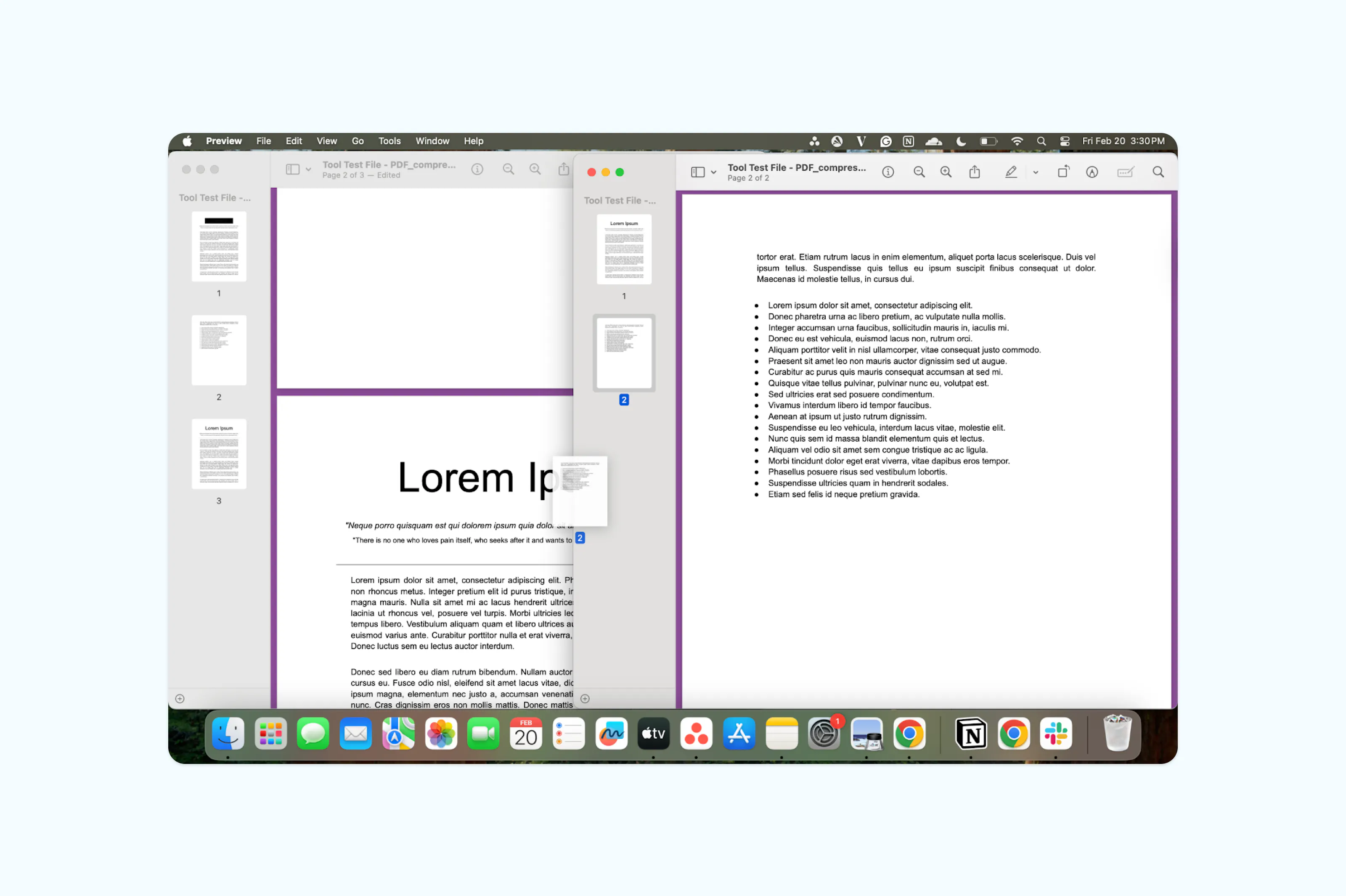
- Clique em Visualizar > Miniaturas para mostrar as páginas na barra lateral.
- Abra o segundo PDF no Pré-Visualização e também habilite as miniaturas na barra lateral.
- Selecione as miniaturas das páginas que deseja adicionar do segundo PDF.
- Arraste as miniaturas selecionadas para a barra lateral do PDF principal e solte-as exatamente onde quiser que apareçam no documento final.
- Clique em Arquivo > Exportar como PDF para salvar o documento combinado.
Perguntas frequentes
Posso juntar PDFs em um Mac sem baixar nenhum programa?
Sim. O Pré-Visualização no Mac permite unir PDFs de forma básica. Para um controle maior, como selecionar páginas específicas, reorganizá-las ou juntar diferentes tipos de arquivos, ferramentas online como a Lumin permitem fazer tudo isso sem instalar nada.
Posso juntar mais de dois PDFs ao mesmo tempo no Mac?
O Pré-Visualização pode juntar vários PDFs, mas é preciso arrastar cada arquivo individualmente, o que se torna trabalhoso com muitos documentos. Ferramentas online como a Lumin permitem juntar vários arquivos de uma só vez, sendo uma opção mais rápida e simples quando há mais de dois PDFs.
Juntar PDFs muda a formatação dos meus documentos?
Não, se você usar a ferramenta certa. A Lumin mantém toda a formatação original, fontes, imagens e layouts durante a junção.
É seguro juntar PDFs online?
A Lumin usa criptografia AES-256 para proteger seus arquivos durante o envio e enquanto armazenados. A plataforma atende a padrões importantes de segurança e privacidade, incluindo SOC 2, GDPR e CCPA. Você pode solicitar a exclusão dos seus dados a qualquer momento. Saiba mais sobre como a Lumin protege seus dados.
Aproveite mais seus PDFs no Mac
Juntar é só o começo. Com uma conta gratuita na Lumin, você pode editar PDFs, adicionar comentários, converter arquivos, assinar documentos e muito mais, tudo direto do navegador.
Guias e ferramentas relacionados:

Compartilhar esta publicação