
How to save an email as a PDF
Saving an email as a PDF is the best way to archive important conversations, preserve digital receipts, or share professional correspondence without forwarding messy email threads. Unlike a standard screenshot, a PDF preserves the text and layout, making it searchable and easy to store in cloud folders like Google Drive. This guide explains three simple ways to save an email as a PDF using Gmail and mobile devices.
Table of contents
- 1. Method 1: Save an email as a PDF from Gmail (Desktop)
- 2. Method 2: Save an email as a PDF on iPhone or Android
- 3. Open your email PDF in Lumin
- 4. Troubleshooting common issues
- 5. Frequently asked questions
- 6. Start archiving your emails today
Share this post
Method 1: Save an email as a PDF from Gmail (Desktop)
Gmail doesn't have a "Download as PDF" button, but you can achieve the same result using the Print function built into your browser.
Here’s how to save a Gmail email as a PDF:
- Open the email you want to save.
- Click the “Print” icon in the top right corner of the message.
- In the Print window, change the Destination or Printer to “Save as PDF.”
- Click “Save”.
- Choose a folder on your computer and name your file.
Method 2: Save an email as a PDF on iPhone or Android
You can easily convert emails to PDF on the go using your smartphone’s sharing features.
On iPhone (iOS):
- Open the message and click the three dots (...)
- Scroll down and tap “Print all”.
- On the print preview screen, tap the “Share” icon and select “Save to Files”.
- Now, you already save an email as a PDF
On Android:
- Open the email and tap the three dots.
- Tap “Print”.
- Select “Save as PDF” from the dropdown menu at the top.
- Tap the “PDF download” icon to save it to your device.
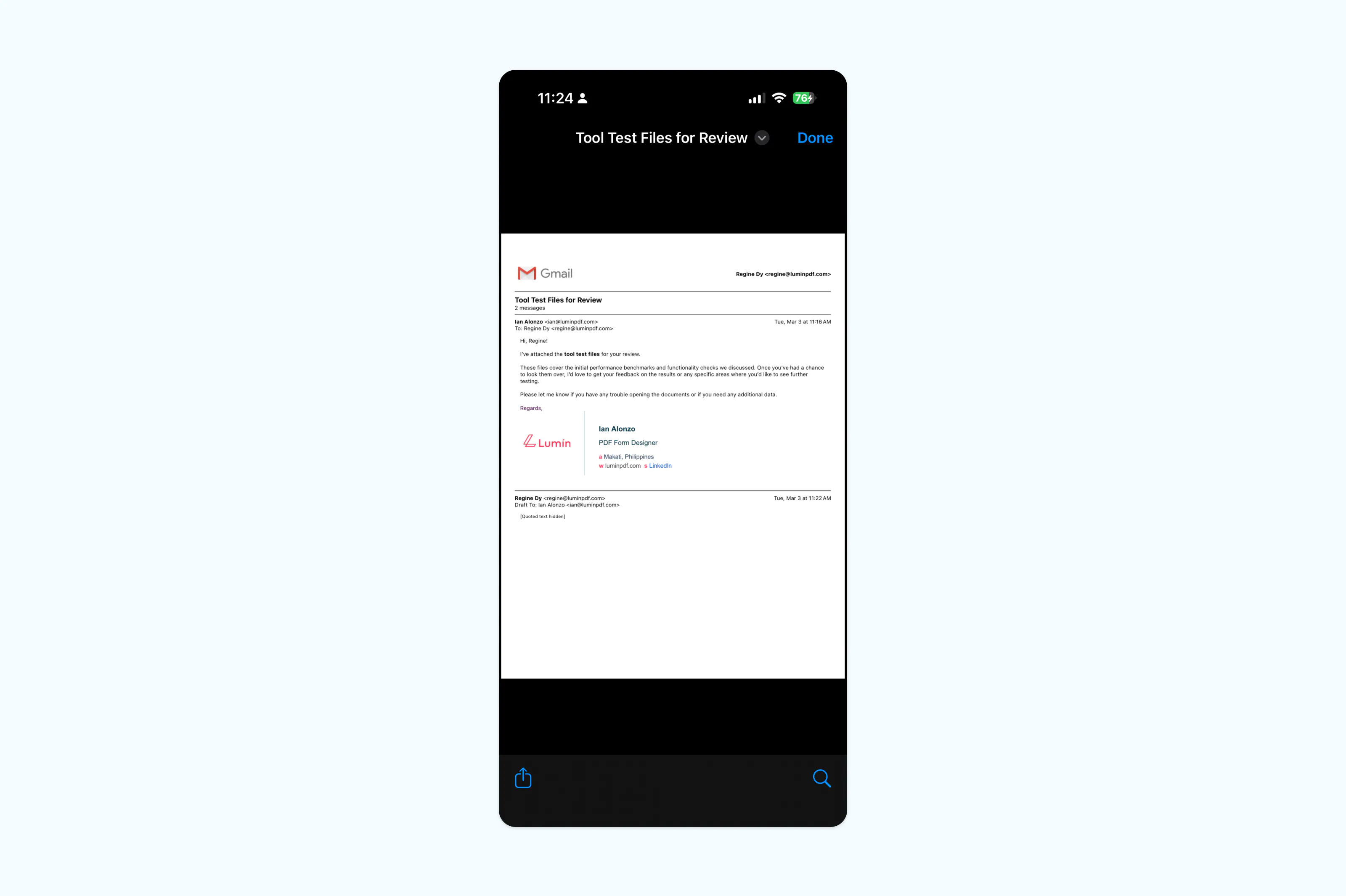
Note: If your email contains attachments, saving the email as a PDF will usually only save the body text. You will need to download and convert the attachments separately if you want them included in a single document.
Open your email PDF in Lumin
Once your email is saved as a PDF file, you can upload it to Lumin to continue working on the document. Lumin allows you to add annotations, insert signatures and share the file with others for quick collaboration.
Troubleshooting common issues
If the PDF layout looks broken, try clicking "Simplify Page" or "Hide Images" in your print settings to clean up the text. If you are trying to save an entire thread but only one reply appears, ensure you have selected the "Print All" option usually found at the very top of the email thread.
If the "Save as PDF" option is missing, ensure your browser or operating system is updated, as this is a standard system feature on modern devices. In some cases, the option may appear under the Print menu, where you can select “Save as PDF” as the destination instead of a printer.
Frequently asked questions
Can I save multiple emails as one PDF?
Most standard email clients only allow you to print one thread at a time. To merge multiple emails, save them individually and then use a tool like Lumin to merge the PDF files into a single document.
Will links in my email still work in the PDF?
Most links stay active, but it depends on your conversion method. While PDFs support hyperlinks, using "Print to PDF" often flattens the file into a static image, breaking the links; using "Save As" or "Export" keeps them clickable.
How do I save an email with its attachments as one PDF?
The standard print function does not merge attachments. You must download the attachments, convert them to PDF, and then use a PDF editor to combine them with the saved email body.
Is my data safe when converting emails to PDF?
When using the "Print to PDF" function locally on your computer, your data remains on your device. If you use online converters, ensure you are using a trusted provider with secure encryption.
Start archiving your emails today
Saving an email as a PDF is a quick way to ensure your records are professional and permanent. Whether you use Gmail's built-in print settings or need to merge multiple threads using Lumin, having a PDF version makes your life easier.Ready to organize your inbox? Save your important emails as PDFs and keep your digital filing system clutter-free.

Share this post