
How to extract images from a PDF
Extracting images from a PDF sounds like it should be easy, but the format isn't designed with that in mind. PDFs lock down content to preserve layout, which means you can't simply copy and paste an image the way you would in a Word document or a web browser. Fortunately, there are a few reliable ways to get the job done.
Table of contents
- 1. Method 1: Use Lumin's PDF to JPG converter
- 2. Method 2: Use Preview on Mac
- 3. Method 3: Use the Snipping Tool on Windows
- 4. Frequently asked questions
Share this post
Method 1: Use Lumin's PDF to JPG converter
The quickest way to extract images from a PDF is to convert your PDF pages into image files using Lumin's free PDF converter. This works especially well when you want to extract a full page as an image, or when your PDF contains embedded photos or graphics you need to repurpose.
Here's how to do it:
- Open Lumin's free PDF converter and upload your PDF.
- Select "JPG Image" from the format dropdown menu.
- Click "Save on your computer" or save directly to Google Drive.
Each page of your PDF will be saved as a separate JPG file, making it easy to locate and use individual images. Lumin also supports PNG output if you need a format with lossless compression or transparent backgrounds: just select "PNG Image" from the same dropdown. Once your annotations are complete, use Lumin’s Crop tool to remove unwanted sections and keep only the area you need.
Method 2: Use Preview on Mac
Mac users can extract images from a PDF directly using the Preview app, which comes pre-installed on every Mac. This is a good option if you only need to grab one or two images and don't want to use an online tool.
Here's how to do it:
- Open your PDF in Preview.
- Go to File > Export.
- In the Format dropdown, choose JPEG or PNG.
- Adjust the resolution if needed, then click Save.
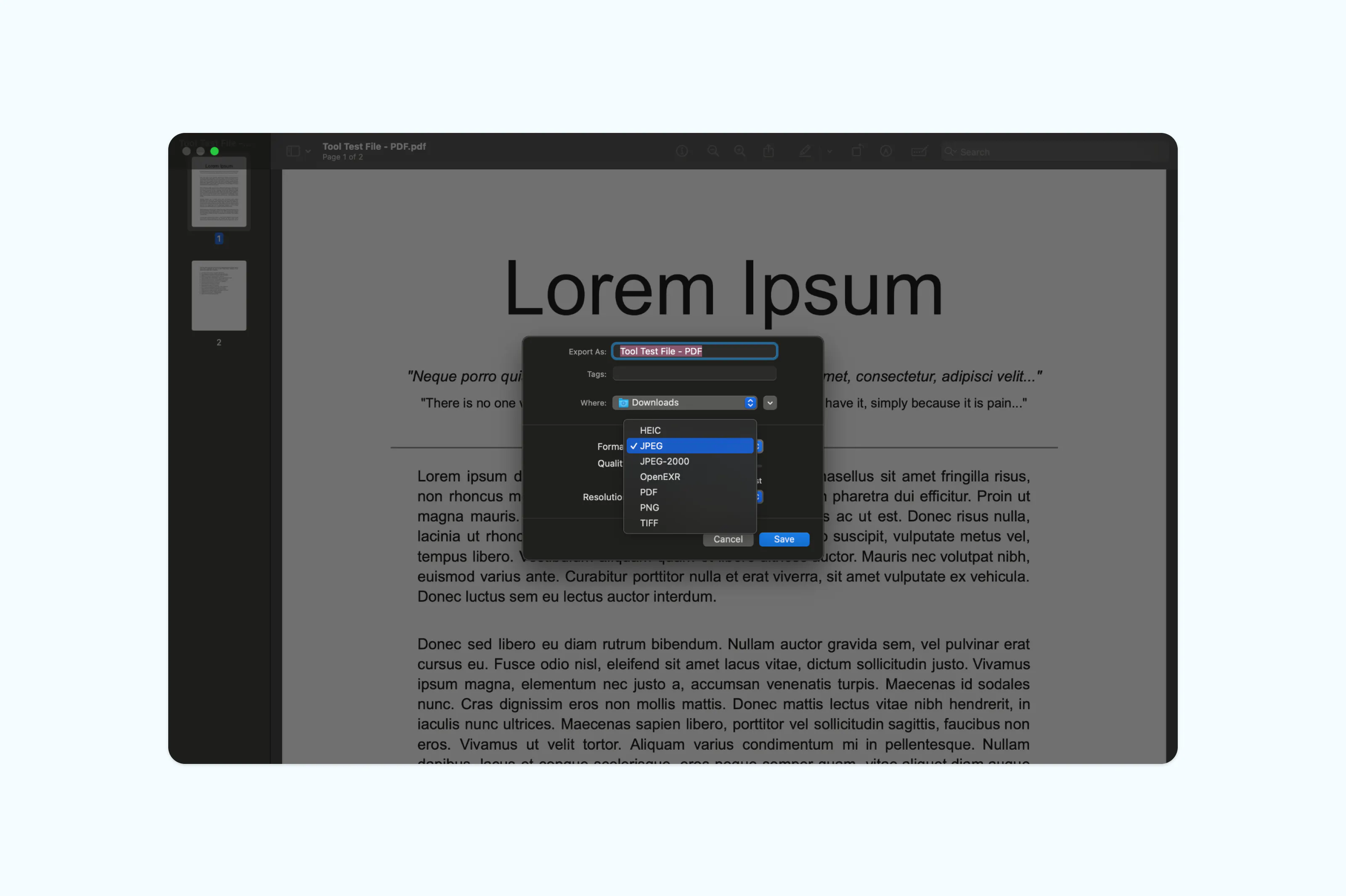
Note: Preview will export the entire page as an image file, not just the embedded image itself. If you only need a specific area, use the Rectangular Selection tool (found in the toolbar) to draw around the image, then copy and paste it into another application or save it via File > Export as PNG.
Method 3: Use the Snipping Tool on Windows
Windows users can use the built-in Snipping Tool to capture images directly from a PDF. This method works well for grabbing individual graphics or photos without needing to install anything extra.
Here's how to do it:
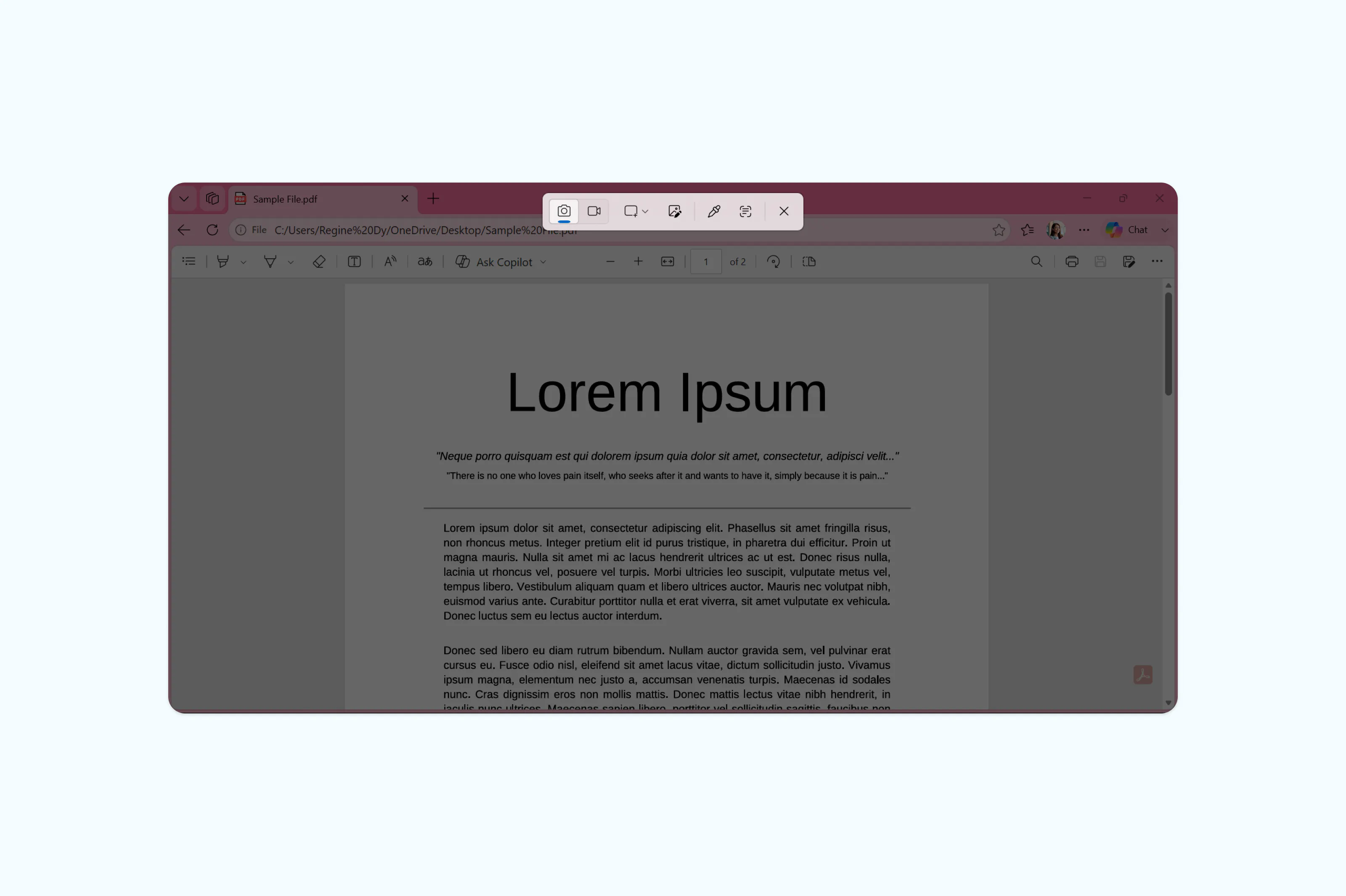
- Open your PDF in a PDF viewer such as the Edge browser or the Windows Photos app.
- Navigate to the page containing the image you want to extract.
- Press Windows + Shift + S to open the Snipping Tool.
- Draw a selection box around the image.
- Click the notification that appears to open the snip, then save it as a PNG or JPG.
Frequently asked questions
Can I extract images from any PDF?
In most cases, yes. Standard PDFs created from digital files allow image extraction using the methods above. However, password-protected or permission-restricted PDFs may block content from being copied or exported. If you're unable to extract images from a particular file, check whether it has security restrictions applied.
What's the difference between extracting images and converting a PDF to an image?
Extracting an image means isolating a specific graphic or photo from within a PDF page. Converting a PDF to an image means turning an entire page into an image file, such as a JPG or PNG. If you just need a visual copy of a full page, conversion is the simpler option. If you need to isolate a specific embedded graphic for use elsewhere, you may need to crop or use a selection tool after converting.
How do I extract images from a PDF in high resolution?
Resolution depends on the quality of the original image embedded in the PDF and the tool you use. When using Lumin's PDF to JPG converter, output quality reflects the original file. In Mac's Preview, you can increase the DPI setting when exporting to get a higher-resolution result.
Is it legal to extract images from a PDF?
It depends on the content and its ownership. Extracting images from your own documents or from PDFs with open licensing is perfectly fine. Extracting images from commercially published materials such as e-books, magazines or licensed stock photography may infringe copyright. Always check the document's terms of use before repurposing its content.
Can I extract images from a scanned PDF?
Scanned PDFs are essentially images themselves, so there is no separately extractable image layer. You can convert a scanned PDF to JPG or PNG using Lumin's converter, which will give you an image file of each scanned page.

Share this post