
How to flatten a PDF
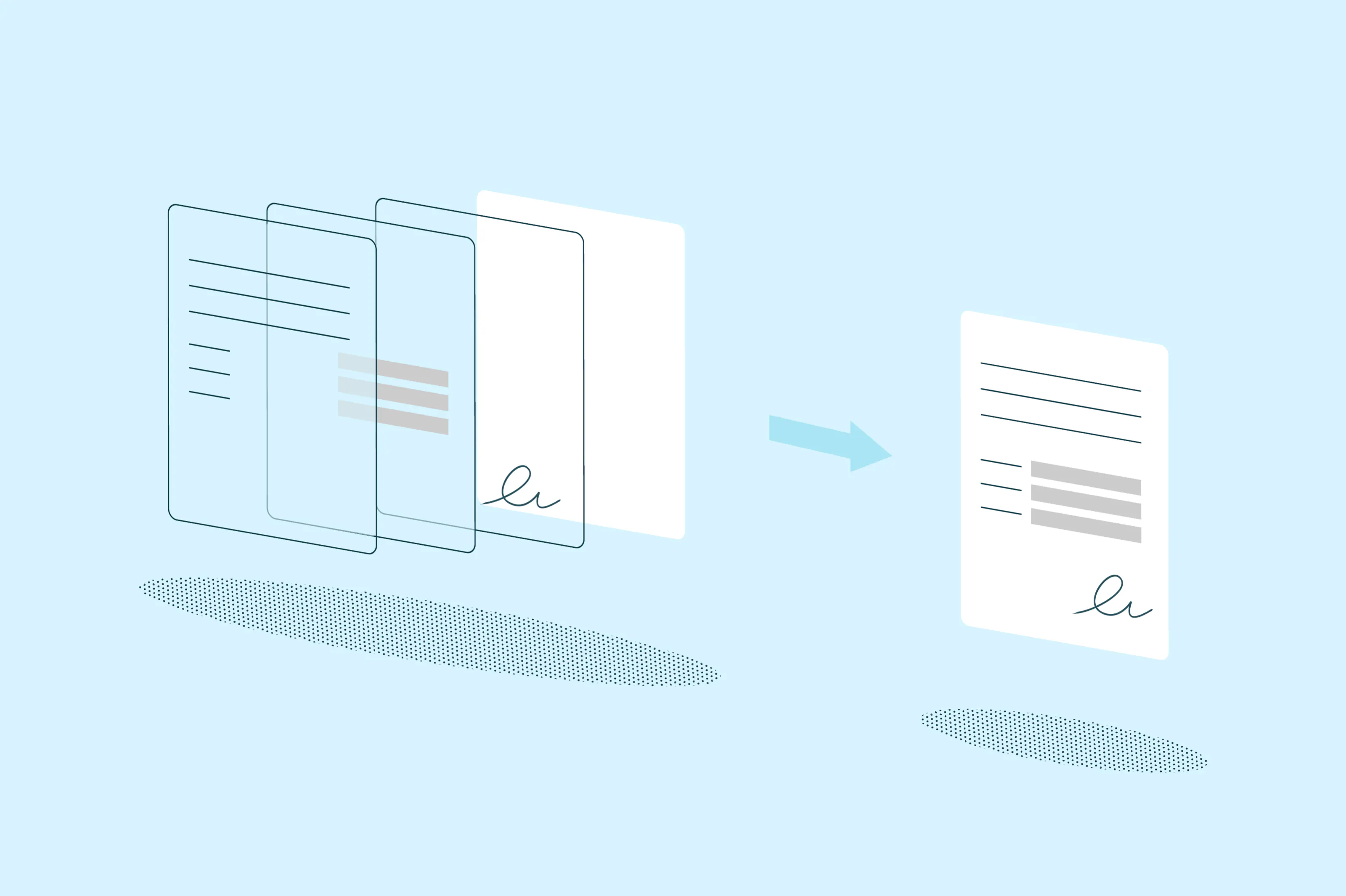
If you've ever sent a filled-out form or signed contract only to have the recipient accidentally edit your entries, you already know why flattening matters. Flattening a PDF takes all the interactive layers in your document, things like form fields, annotations, signatures and comments, and merges them into a single static layer that can't be changed.
Table of contents
- 1. What does it mean to flatten a PDF?
- 2. Method 1: Flatten a PDF online with Lumin
- 3. Method 2: Flatten a PDF on Windows
- 4. Method 3: Flatten a PDF on Mac using Preview
- 5. Frequently asked questions
- 6. More PDF editing tools
Share this post
In this guide, we'll walk you through three ways to flatten a PDF. The first method uses a free online tool and works on any device. The second uses the built-in print-to-PDF function on Windows. And the third covers how to do it on a Mac using Preview.
What does it mean to flatten a PDF?
A standard PDF can contain multiple layers of content. The base layer holds the original text and images, while additional layers sit on top and contain things like fillable form fields, digital signatures, comments and annotations. These interactive elements can be edited, moved or deleted by anyone who opens the file.
Flattening removes these separate layers and bakes everything into the background of the document. The visual content stays the same, but all interactive elements become part of a single, non-editable layer. Think of it like printing a document onto paper: once it's printed, you can't click into a form field or drag an annotation around.
Method 1: Flatten a PDF online with Lumin
The quickest way to flatten a PDF is by using a free online tool. Lumin's Flatten PDF tool lets you open your document, print it to PDF and download a flattened version, all from your browser.
Here's how to do it:
- Open Lumin's Flatten PDF converter and upload your PDF.
- Click the box that says “Flatten PDF” under the format option.
- Choose your compression option:
- None — original file quality
- Standard — good quality with reduced file size
- Maximum — lower quality but smaller MB size
- Select “Save on your computer” or save the PDF directly to your Google Drive.
Method 2: Flatten a PDF on Windows
Windows has a built-in print-to-PDF feature that works as a quick and free way to flatten any PDF. You don't need to install any extra software since Microsoft Print to PDF comes included with Windows 10 and later.
Here's how to do it:
- Open your PDF in Microsoft Edge or any other PDF viewer.
- Press Ctrl+P to open the print dialog.
- Select "Microsoft Print to PDF" as the printer.
- Click "Print" and choose where to save the new file.
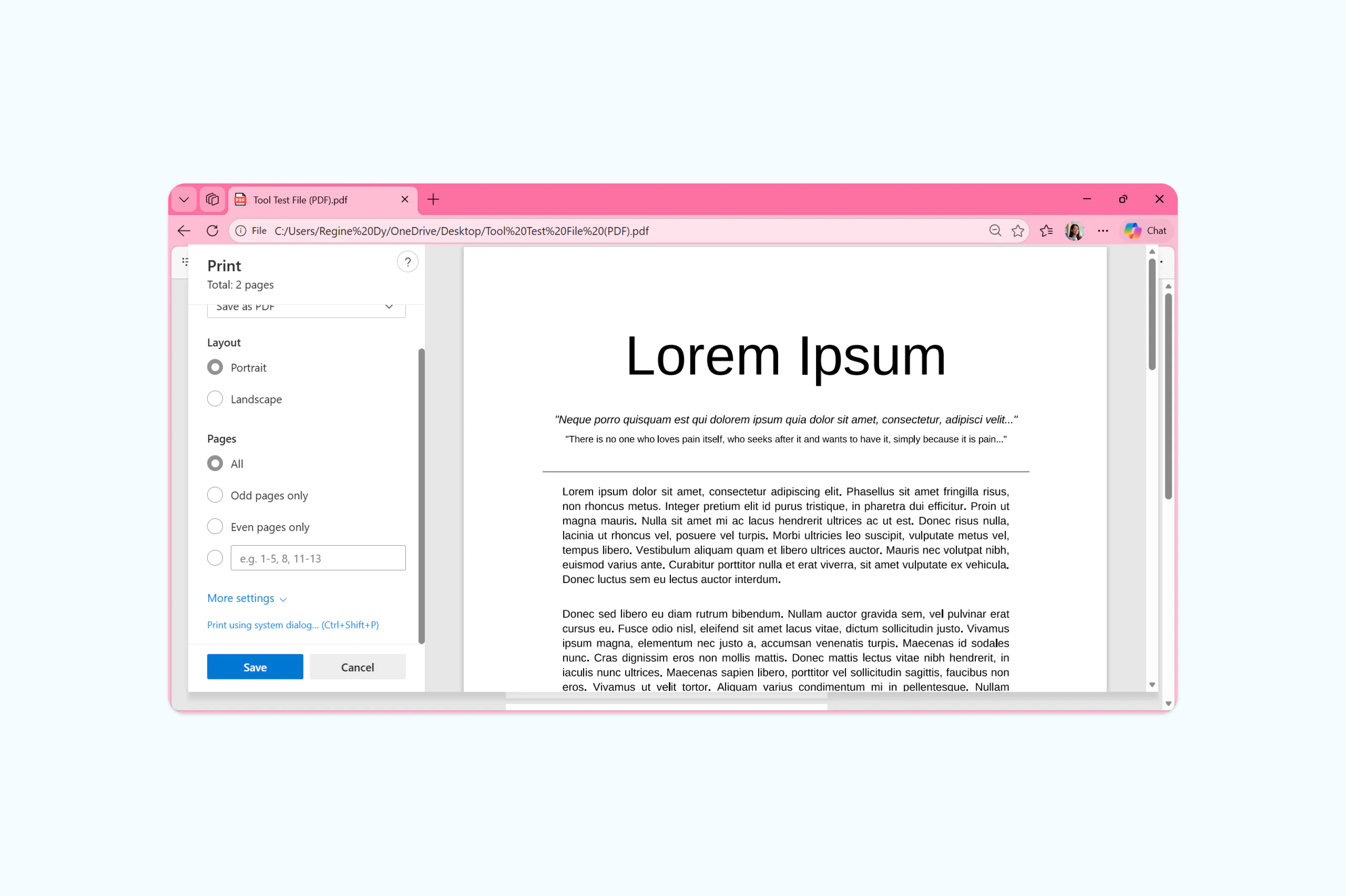
Note: This creates a new copy of your document with all interactive layers merged into the background. The original file stays unchanged, so you'll still have an editable version if you need it later. This method works well for most documents, though very complex PDFs with unusual fonts or embedded media may lose some visual fidelity.
Method 3: Flatten a PDF on Mac using Preview
If you're on a Mac, you can flatten a PDF using Preview, the built-in document viewer included with macOS. This allows you to combine annotations, signatures and form fields directly into the PDF so the content becomes non-editable.
Here's how to do it:
- Open the PDF in Preview (right-click the file and choose "Open with" > "Preview."
- Go to "File" > "Print" or press Cmd+P.
- In the bottom-left corner of the print dialog, click the "PDF" dropdown and select "Save as PDF."
- Choose a filename and location, then click "Save."
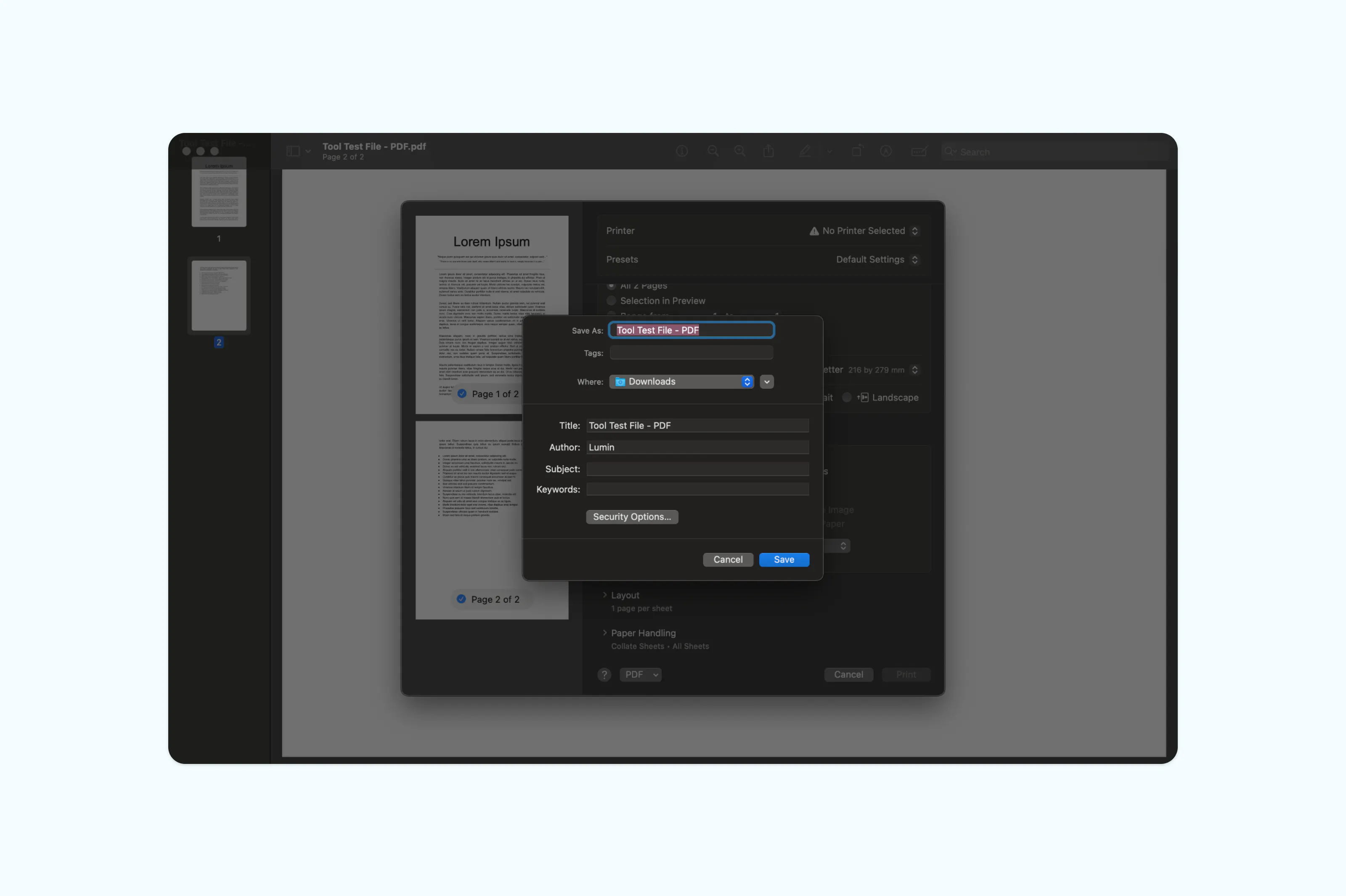
Note: The saved file will be a flattened version of your original document. All form fields, annotations and signatures will be locked into the background, and the interactive elements will no longer be editable.
Frequently asked questions
Is flattening a PDF the same as compressing it?
No, they're two different things. Flattening merges interactive layers into a single static layer, which locks in form data, annotations and signatures. Compressing reduces the file size by optimizing images and removing unnecessary data. A flattened PDF may or may not be smaller than the original, depending on the content. If you need to reduce your file size, try a dedicated PDF compressor instead.
Can a flattened PDF be edited?
Not in the usual sense. Once a PDF is flattened, form fields, comments and annotations become part of the fixed background. You can't click into a form field or move an annotation. However, someone could still use a PDF editor to add new annotations or text on top of the flattened document. If you need to prevent all editing entirely, consider password-protecting your PDF as well.
Is flattening a PDF permanent?
Yes, flattening is a one-way process. Once you save a flattened PDF, the interactive layers are gone for good. That's why it's always a smart idea to keep a copy of the original, editable version before you flatten. If you do need to make changes later, you'll need to go back to the original file.
Does flattening a PDF remove layers?
Flattening merges all visible layers into one. Any content that was visible before flattening will still be visible afterward, but it will no longer be separated into distinct editable layers. Hidden layers or content outside the visible page area may be removed entirely during the flattening process.
More PDF editing tools
Need to do more with your PDFs after flattening your file? Several free onl can help you manage and update your documents more easily. You can edit PDFs online, compress large PDF files to reduce file size, protect sensitive documents with a password or add electronic signatures without printing anything.

Share this post