
How to insert an image into a PDF
Want to insert an image into your PDF? From adding company logos to scanned IDs or signatures, there are simple tools that make it quick and easy.
Table of contents
- 1. Method 1: Use Lumin's free online PDF editor
- 2. Method 2: Use Preview on Mac
- 3. Method 3: Use an online document editor
- 4. Common image formats and best practices
- 5. Troubleshooting common issues
- 6. Frequently asked questions
Share this post
Adding images to your PDF can make your document more professional and visually engaging. Whether it’s a company logo for a proposal, a photo for a report, or a signature for a contract, inserting images helps personalize and enhance your file. The best part is, you don’t need expensive software or advanced technical skills to do it.
In this guide, we’ll cover three easy methods to insert images into your PDFs. You’ll learn how to use free online tools, built-in Mac features, and professional software to place images exactly where you want them.
Method 1: Use Lumin's free online PDF editor
The fastest way to insert an image into a PDF is through a browser-based tool like Lumin's PDF editor. This method works on any device and doesn't require downloading software or creating an account for basic edits.
Here's how to add your image:
- Open Lumin’s free PDF Annotator in your browser.
- Upload your PDF by dragging and dropping it or clicking "Choose file".
- Select the "Image" tool from the upper toolbar.
- Click where you want to place the image in your document.
- Upload your image file (JPG, PNG, or other common formats).
- Resize and position the image by dragging the corners.
- Download your updated PDF.
The entire process is free and takes less than two minutes, giving you full control over image placement and sizing.
Method 2: Use Preview on Mac
Mac users have a built-in option for adding images to PDFs using Preview. This native application handles basic PDF editing tasks without needing third-party software. While it's convenient for Mac users, Preview has some limitations compared to dedicated PDF editors.
To insert an image using Preview:
- Open the image you want to include, along with the PDF where you want to insert it, then select “Open With” > “Preview”.
- Go to the image file and press Command + C to copy the image.
- Press Command + V to duplicate it.
- After that, press Command + X to cut the image.
- Switch to the PDF and press “Command + V” to paste the image.
- Click and drag to move the image to your desired position.
- Finally, save your document to keep the changes.
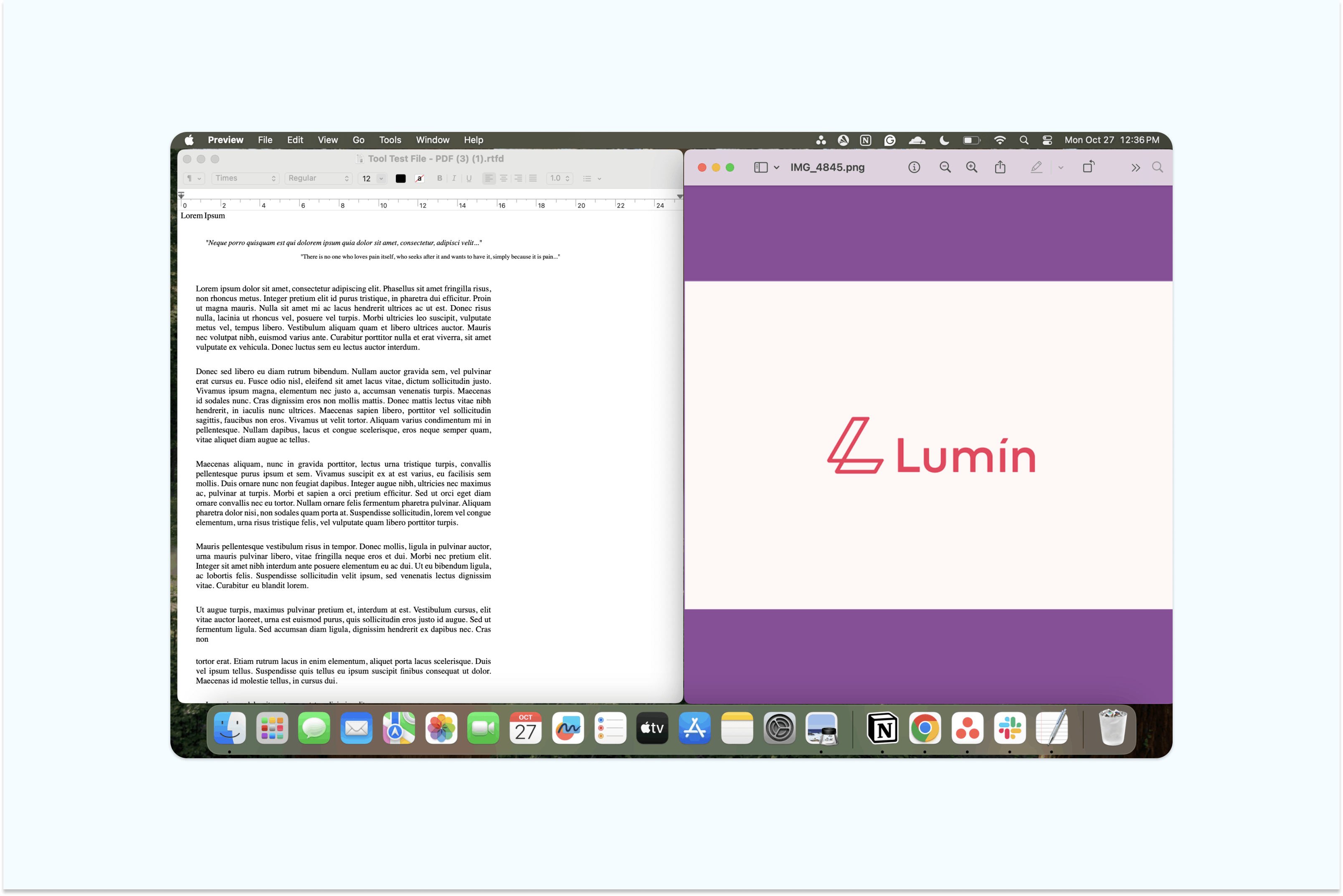
Preview works well for simple image insertions, but you might find it limiting if you need to add multiple images or want more precise control over positioning.
Method 3: Use an online document editor
Many document editing tools offer image insertion features, especially those made for professional use. These editors usually include a wide range of editing functions, such as adding multiple images at once and adjusting their placement with precision.
To add images using desktop PDF software:
- Upload the PDF where you want to insert an image.
- Click “Image” and choose the file you want to add.
- Click on the area of the PDF where you want to place the image.
- Use the corner handles to resize or rotate it as needed.
- Save your document.
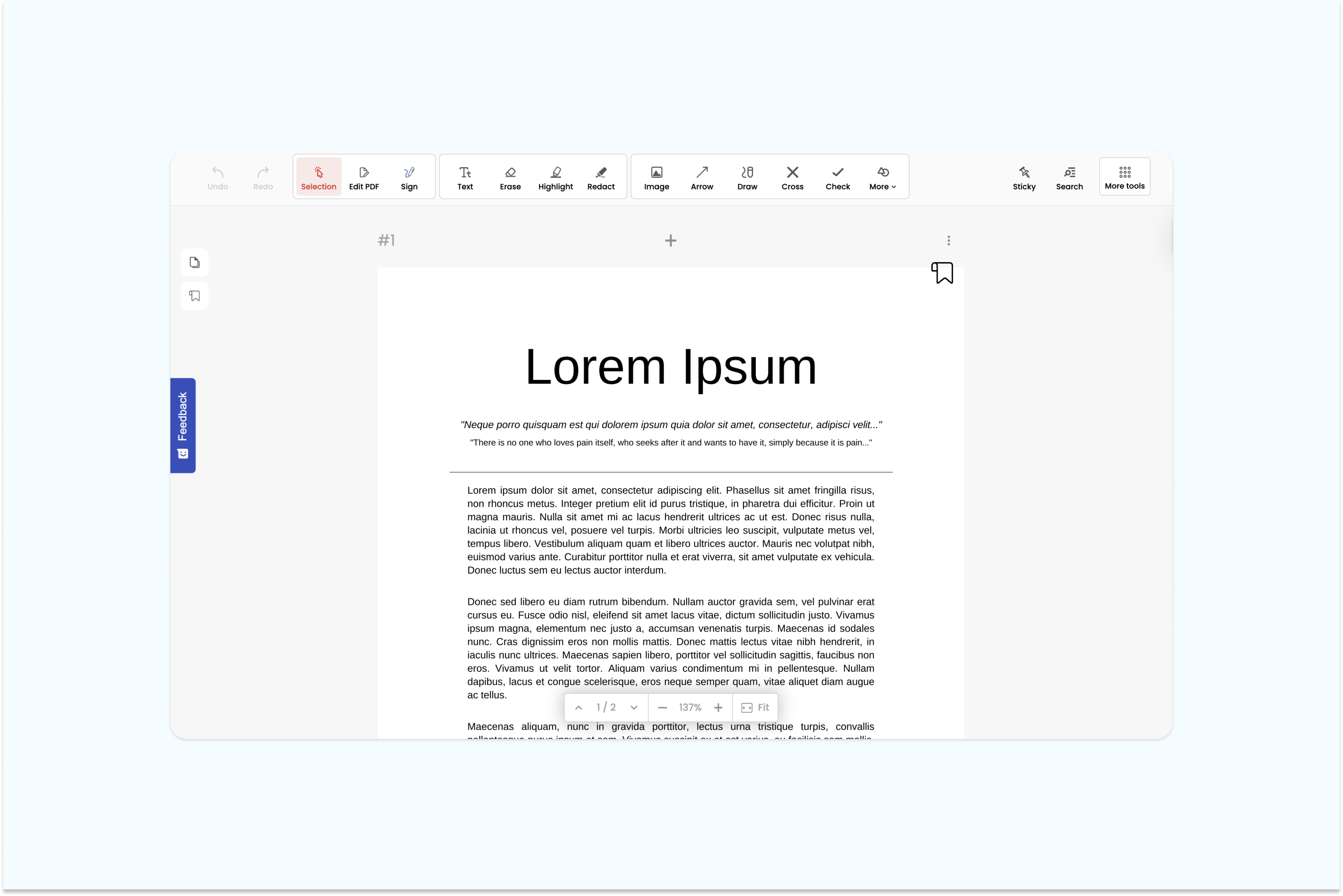
While other online document editors can provide powerful features, most require a paid subscription for full functionality. Free versions often have significant limitations, making them less practical for users who only need to insert images occasionally.
Common image formats and best practices
Understanding which image formats work best can save time and ensure high-quality results. Most PDF editors support the following common formats: JPEG/JPG for photos and images with many colors, PNG for images that need transparency or sharp text, and GIF for simple graphics with limited colors.
When preparing images for insertion, consider these tips for the best outcome: resize images beforehand to prevent large file sizes, use a 300 DPI resolution for most purposes, and choose PNG format for logos or graphics to maintain crisp edges. If an image appears blurry, make sure you’re using a high-resolution source file.
Troubleshooting common issues
Even with easy-to-use tools, you might still face challenges when inserting images into PDFs. If an image looks pixelated or blurry after insertion, the original resolution is likely too low. Always use the highest quality image available. Keep in mind that high-resolution images can greatly increase your PDF’s file size, so consider compressing them beforehand or using Lumin’s PDF compression tool afterward.
Some PDFs have security settings that prevent editing. If you’re unable to add images, check whether the file is password-protected or has editing restrictions. These protections must be removed before you can make any changes.
Frequently asked questions
Can I add multiple images to a PDF at once?
Yes, most PDF editors, including Lumin, allow you to add multiple images to your document. Simply repeat the image insertion process for each image you want to add. Some tools even support batch insertion for efficiency.
How do I ensure my inserted image doesn't cover existing text?
When placing images, most PDF editors show a preview of where the image will appear. You can adjust the position before finalizing. Additionally, many tools offer layering options to place images behind text or adjust transparency.
What's the maximum image size I can insert into a PDF?
While there's no strict limit, larger images increase file size significantly. For practical purposes, keep individual images under 5MB and resize them to fit your page dimensions before insertion.
Can I edit an image after inserting it into a PDF?
Basic edits like resizing, rotating, and repositioning are possible in most PDF editors. For more complex image editing, you'll need to edit the image in a dedicated photo editor before inserting it into your PDF.
Will inserting images affect the quality of my PDF?
When done correctly, inserting images shouldn't reduce your PDF quality. Use high-resolution images and avoid excessive compression. Professional tools like Lumin maintain document quality while optimizing file size.

Share this post