
How to make a PDF
Creating a PDF is now essential for sharing documents that remain consistent across all devices. Whether you're preparing a contract, sending a presentation, or saving important files, a PDF keeps your formatting intact across platforms.
Table of contents
- 1. Method 1: Use Lumin's free online converter
- 2. Method 2: Make PDFs on Windows
- 3. Method 3: Make PDFs on Mac
- 4. Method 3: Create PDFs on iPhone and mobile devices
- 5. Converting specific file types to PDF
- 6. Frequently asked questions
Share this post
The best part is you don’t need costly tools or technical skills to make one. You just need a method that fits your device and what you need to do.
Method 1: Use Lumin's free online converter
The fastest way to create a PDF is through Lumin's browser-based converter. This method works instantly on any device without requiring software installation or account creation.
Here's how to make a PDF using Lumin:
- Open Lumin's free PDF converter.
- Upload your file (Word, Excel, JPG, or other formats) by dragging it into the drop zone or clicking the "Upload" button.
- Sign in to your account and choose PDF as the output format.
- Click “Save on your computer” or “Save to Google Drive” to download your new PDF file.
This method works with all common file types while keeping your original fonts, layout, and formatting intact. It also preserves image quality and document structure, making it perfect for professional documents.
Method 2: Make PDFs on Windows
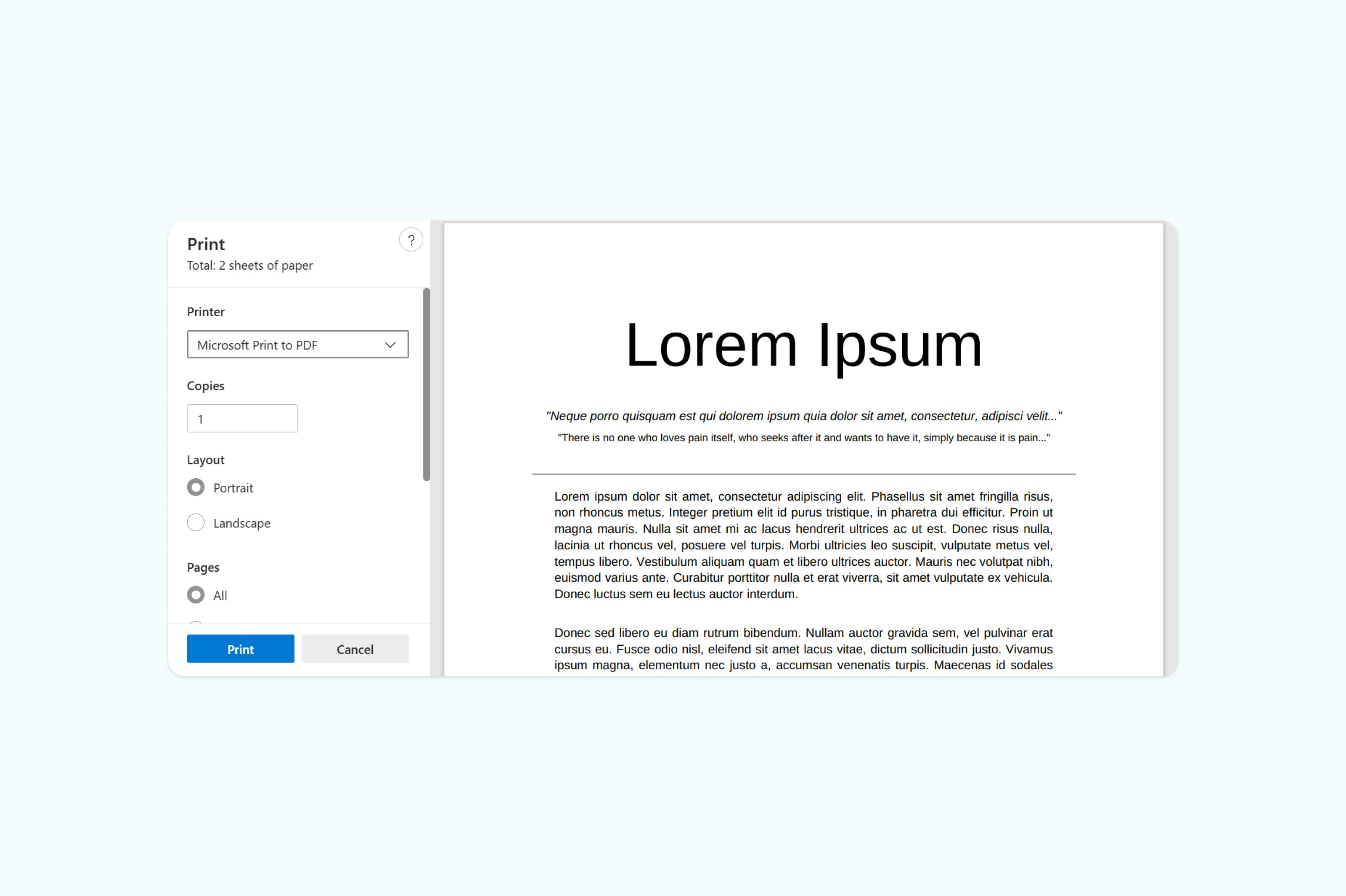
You can create a PDF on Windows using Microsoft Edge, letting you quickly convert web pages, documents, or images without extra software.
Steps to create a PDF with Microsoft Edge:
- Open the file or web page you want to convert. Right-click the file, choose “Open with,” and select “Microsoft Edge”.
- Press “Ctrl + P” or click the three-dot menu and select “Print”.
- In the printer options, choose “Microsoft Print to PDF”.
- Click “Print”, select a destination folder, and name your PDF.
This method is fast, built-in, and ideal for turning content into PDFs on Windows.
Method 3: Make PDFs on Mac
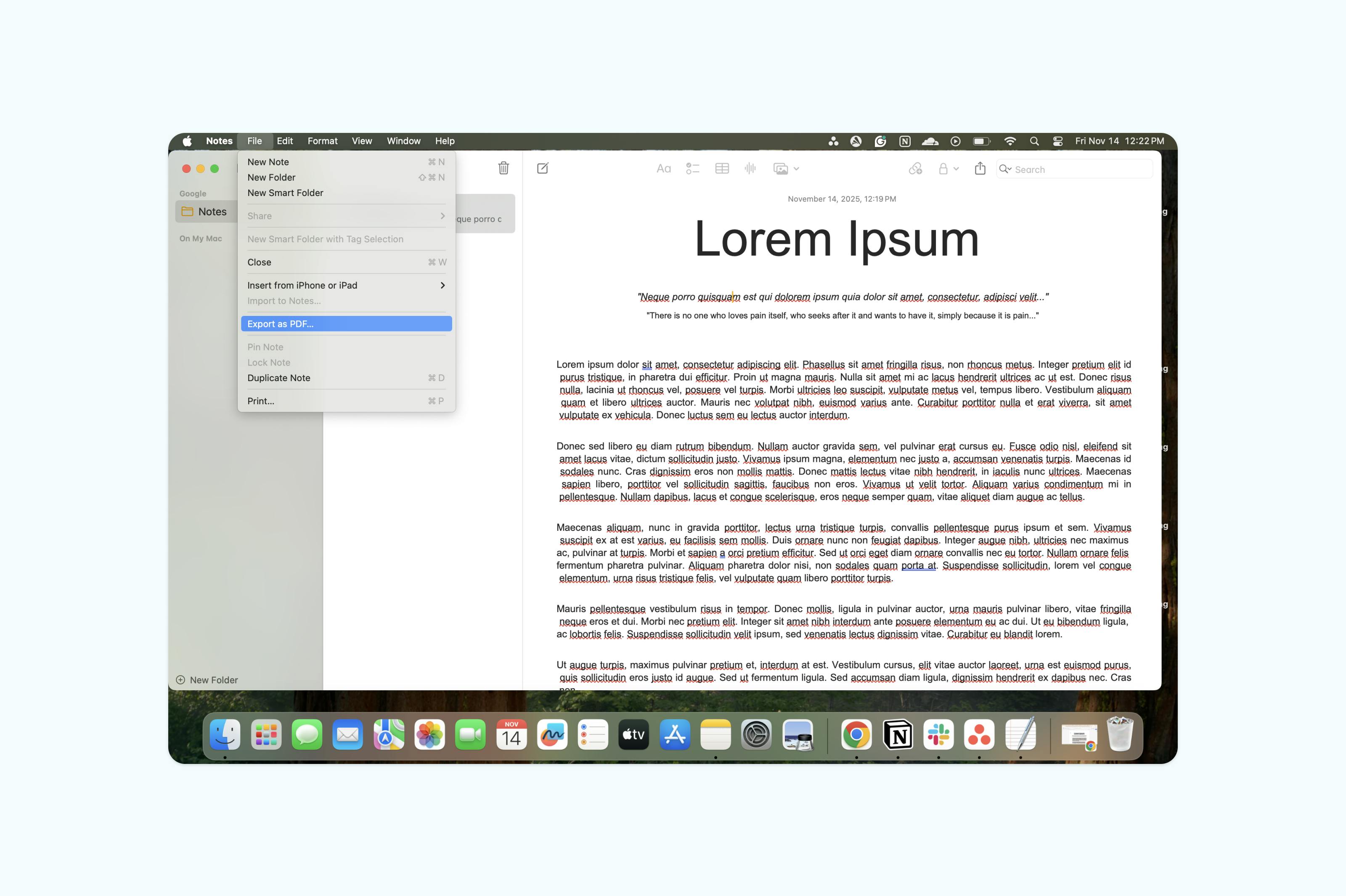
One of the easiest ways to create a PDF on a Mac is by using your Notes app. This method lets you quickly convert your notes, images, or documents into a PDF without needing additional software.
Creating a PDF on Mac involves these steps:
- Open the Notes app on your Mac.
- Create a new note or select an existing note you want to convert.
- Add any text, images, or attachments you want included in the PDF.
- Click “File” in the menu bar and select “Export as PDF”.
- Choose the location where you want to save the PDF and click “Save”.
Overall, using the Notes app on a Mac is simple and effective. However, formatting may be limited, and features like form creation or collaborative editing are not available. Web-based tools offer these additional capabilities.
Method 3: Create PDFs on iPhone and mobile devices
Lumin makes mobile PDF creation easy and powerful, offering multiple options for iPhone and Android users. With Lumin, you can create professional PDFs anytime, anywhere.
Step-by-step guide on how to create a PDF on a mobile device:
- Open Lumin’s mobile app and sign in to your account.
- Upload the document you want to convert.
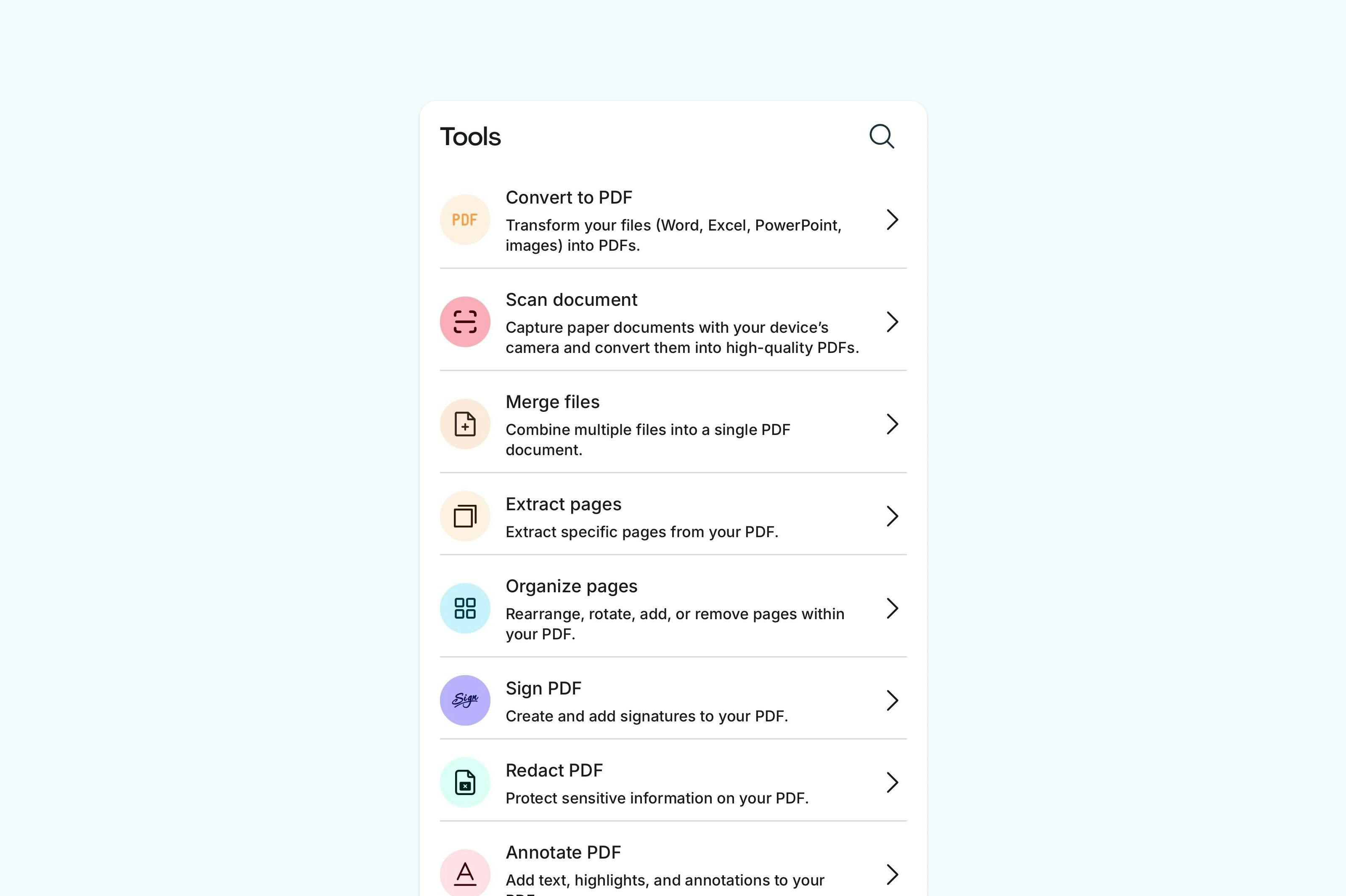
- Tap the Tools icon on the toolbar below.
- Select “Convert to PDF“ and choose the uploaded document.
- Once converted, you can share, download, or send a copy.
With Lumin, mobile PDF creation is fast, flexible, and reliable, perfect for work or personal use.
Converting specific file types to PDF
Different file types require tailored approaches for optimal PDF creation. Lumin’s converter intelligently handles each format to ensure your PDFs maintain quality and functionality.
Google Docs to PDF: Lumin lets you quickly turn your Google Docs into PDFs while choosing the level of optimization. Simply download your Google Doc as a PDF or copy the content into Lumin, then select your preferred option: None (original file), Standard (good quality), or Maximum (lower quality), and download your PDF for free. Fast, secure, and easy.
Images to PDF: Lumin allows you to convert images into PDFs. You can apply OCR to make text searchable and editable, ensuring your images and scanned documents are optimized for sharing or archiving. Convert multiple images into a single PDF or create separate PDFs for each image depending on your needs.
Frequently asked questions
Can I create a PDF for free?
Yes, there are multiple free options for creating PDFs. Built-in features on Windows and Mac, mobile device options, and online tools like Lumin let you create PDFs without watermarks or limitations.
How do I create a PDF on my iPhone?
iPhone users can create PDFs using mobile-friendly online converters. Lumin’s app allows you to upload documents or photos and convert them into professional PDFs anytime, anywhere.
How do I make a PDF file smaller?
After creating your PDF, whether from Google Docs, Word, or another source, you can compress it using online tools like Lumin. This reduces file size while keeping your text and images clear, making it easier to email, upload to websites, or share with others.
What program do I need to create a PDF?
You don’t need special software for basic PDF creation. Most operating systems include built-in options, and free online converters like Lumin can handle more advanced needs without requiring downloads.

Share this post