
How to present a PDF
Have you ever needed to present a PDF in a meeting but weren't sure how to display it properly? PDFs are great for sharing polished and formatted documents but they aren't designed for presentations out of the box.
Table of contents
- 1. Method 1: Present your PDF with Lumin
- 2. Method 2: Use Preview on Mac
- 3. Tips for presenting a PDF on Zoom or Teams
- 4. Frequently asked questions
- 5. Ready to present your PDF?
Share this post
The good news is that you don't necessarily need to convert your file. Depending on what you need, you can present a PDF in full-screen mode, convert it to PowerPoint for more control or use your browser for a quick no-install option. Here are three methods to get it done.
Method 1: Present your PDF with Lumin
If you need to present from any browser without installing software, Lumin PDF has a built-in Presenter Mode. It’s a web-based alternative that turns your PDF into a clean, full-screen slideshow. Please note that this feature is currently in beta, so some functionality may still be evolving.
Here's how to do it:
- Sign up or log in to your Lumin PDF account and upload your file.
- Open the document and click the three dots (More Actions) in the top-right corner.
- Select "Presenter Mode" to switch to a seamless, full-screen view.
- Now you can present your PDF as a slide deck.
Note: Remember to create an account or log in before proceeding with these steps. Additionally, each page of your PDF will become a slide in the new presentation file. From there, you can make other edits before presenting. This method is ideal when you're presenting to a large audience or need to customize the deck beyond what a static PDF allows.
Method 2: Use Preview on Mac
If you're on a Mac and need a fast, no-conversion option, Preview has a built-in slideshow feature that works well for simple PDF presentations. There's no software to install since Preview comes with every Mac.
Here's how to present your PDF using Preview:
- Open your PDF in Preview (right-click the file and select "Open With" > "Preview" if it doesn't open by default).
- Go to "View" in the menu bar and select "Slideshow".
- Use the on-screen controls or arrow keys to navigate between pages.
- Press the Esc key to exit the slideshow when you're done.
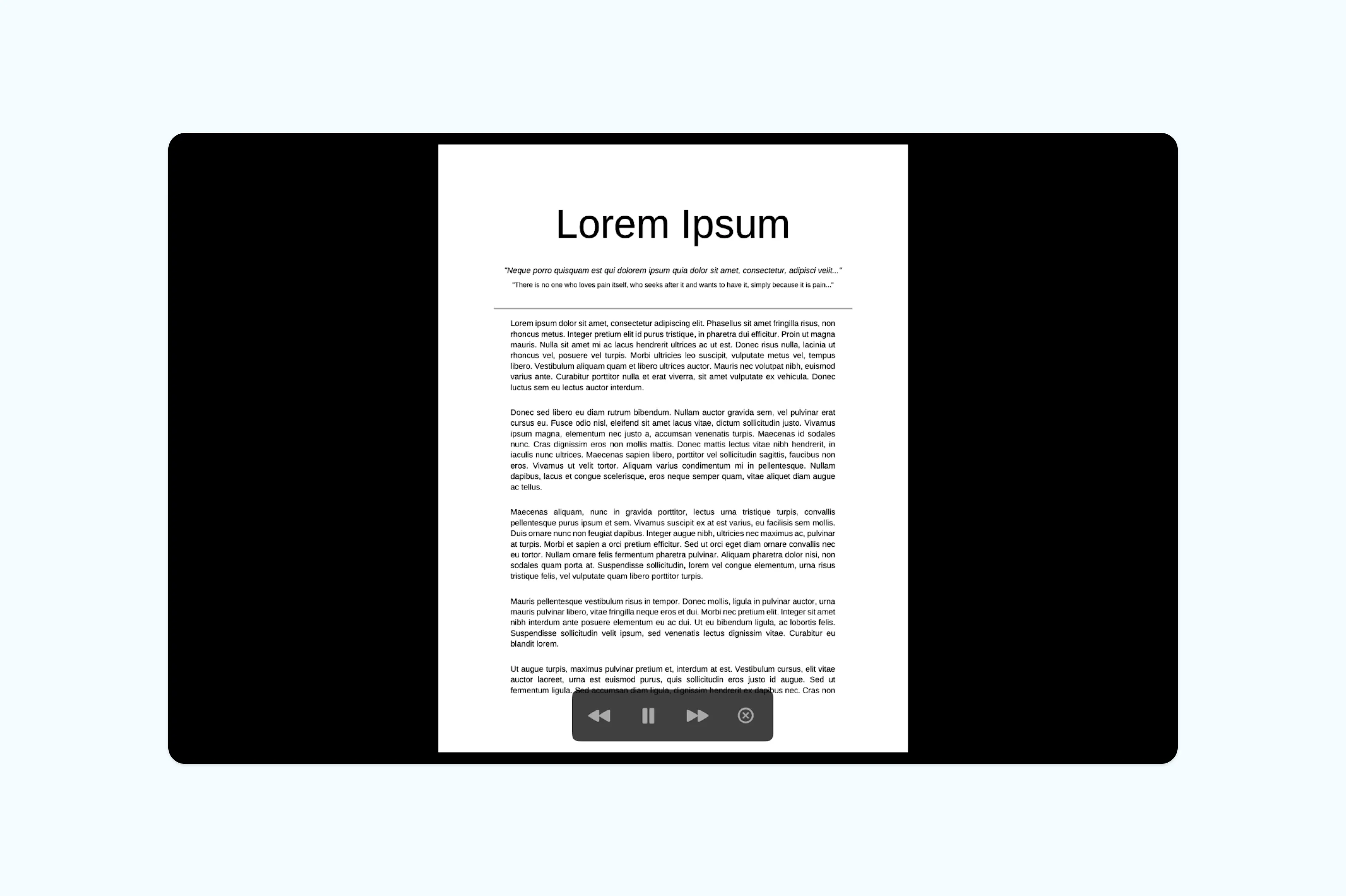
Note: This method displays each page of your PDF full screen, similar to how PowerPoint shows slides. It's perfect for quick, informal presentations where you don't need transitions or speaker notes. Keep in mind that Preview's slideshow mode doesn't support embedded videos or animations, so it works best for static, visually designed PDFs.
Tips for presenting a PDF on Zoom or Teams
- Open your PDF in full-screen or slideshow mode before sharing to keep the view clean.
- Close unnecessary tabs and apps to avoid distractions or accidental sharing.
- Zoom in on key sections so text is easy for everyone to read.
- Use annotation tools to highlight important points while presenting.
- Share only the specific window with your PDF, not your entire screen.
- Test screen sharing beforehand in Zoom or Microsoft Teams to avoid technical issues.
Frequently asked questions
Can I present a PDF without converting it?
Yes, you can present a PDF directly on Lumin without converting it using the beta version of Presenting Mode. On a Mac, Preview’s built-in slideshow feature is one of the fastest options. Both methods display each page like a slide, allowing you to navigate using arrow keys or mouse clicks.
How do I make a PDF fit the whole screen?
In most browsers, pressing F11 (Windows) or Ctrl+Cmd+F (Mac) enters full-screen mode. In Adobe Acrobat Reader, go to View > Full Screen Mode or press Ctrl+L (Cmd+L on Mac). On a Mac, opening the PDF in Preview and selecting View > Slideshow will also fill the screen.
Is there a free way to convert a PDF to PowerPoint?
Yes. Lumin's PDF to PowerPoint converter is free to use and works directly in your browser. Upload your PDF, select PowerPoint as the output format, and download the converted file. Each page of the PDF becomes an editable slide that you can customize in PowerPoint or Google Slides.
Ready to present your PDF?
Turn your PDFs into clear, engaging presentations in just a few clicks. Whether you are sharing reports, proposals or slides, presenting a PDF can be smooth and professional with the right setup. No complicated tools, just a simple way to display your content exactly how you want.

Share this post