
How to save PowerPoint as a PDF
Saving a PowerPoint file as a PDF is one of the easiest ways to make sure your presentation looks the same on every device. PDFs lock in your formatting, fonts and slide layout so nothing shifts when you share your file with colleagues or clients.
Table of contents
- 1. Method 1: Use Lumin's free online converter
- 2. Method 2: Save as PDF in PowerPoint (Windows)
- 3. Method 3: Save PowerPoint as PDF on Mac
- 4. Frequently asked questions
- 5. More PDF tools and guides
Share this post
In this guide we'll show you three ways to convert your PowerPoint to PDF. We'll also cover what are the most common questions and what to do if your formatting isn't converting properly.
Method 1: Use Lumin's free online converter
If you don't have PowerPoint installed or you want a quick browser-based option, Lumin's free converter tool handles the conversion in a few clicks.It works on any device, requires no download, and runs entirely in your browser.
Here's how to do it:
- Open Lumin's free PDF converter tool and upload your PPTX file.
- Select "PDF Document" from the format dropdown menu.
- Select "Save on your computer" or save the PDF directly to your Google Drive.
That's it. Your presentation will be converted to a clean PDF with your original formatting preserved.
Method 2: Save as PDF in PowerPoint (Windows)
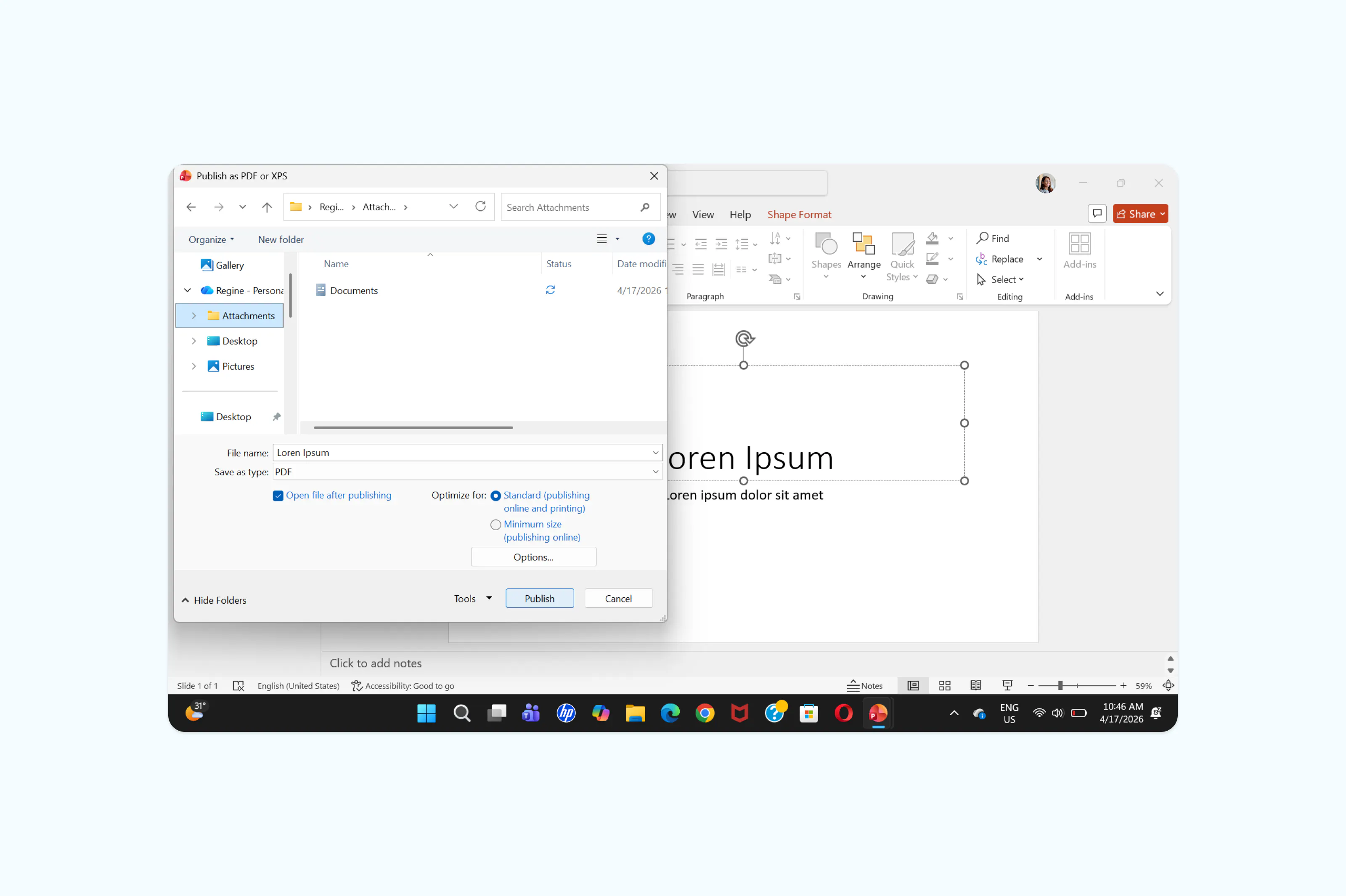
PowerPoint has a built-in option for saving your presentation as a PDF. This is the most common method if you already have the software installed on your computer.
Here's how to do it:
- Open your presentation in PowerPoint.
- Go to "File" > "Export" > "Create PDF/XPS Document".
- Choose a save location, then select "PDF" from the "Save as type" dropdown.
- Click "Save".
Method 3: Save PowerPoint as PDF on Mac
On a Mac, the process is slightly different. You can use PowerPoint for Mac, or rely on the print method to create a clean PDF. This approach is especially useful when converting files from Keynote or Google Slides without installing additional software.
Using PowerPoint for Mac:
- Open your presentation.
- Go to "File" > "Export".
- Select "PDF" from the file format dropdown.
- Click "Export".
Frequently asked questions
Can I convert PPT to PDF without PowerPoint?
Yes. You can use a free online converter like Lumin to upload your PPTX file and download it as a PDF. This works on any device with a browser and doesn't require PowerPoint to be installed.
Why does my formatting change when I save as PDF?
Fonts that aren't embedded in the file are the most common cause. If you're using custom fonts, try embedding them in your presentation before exporting. Go to "File" > "Options" > "Save" and check "Embed fonts in the file". Complex animations and transitions also won't carry over to a PDF since the format is static.
Can I convert PPT to PDF on my phone?
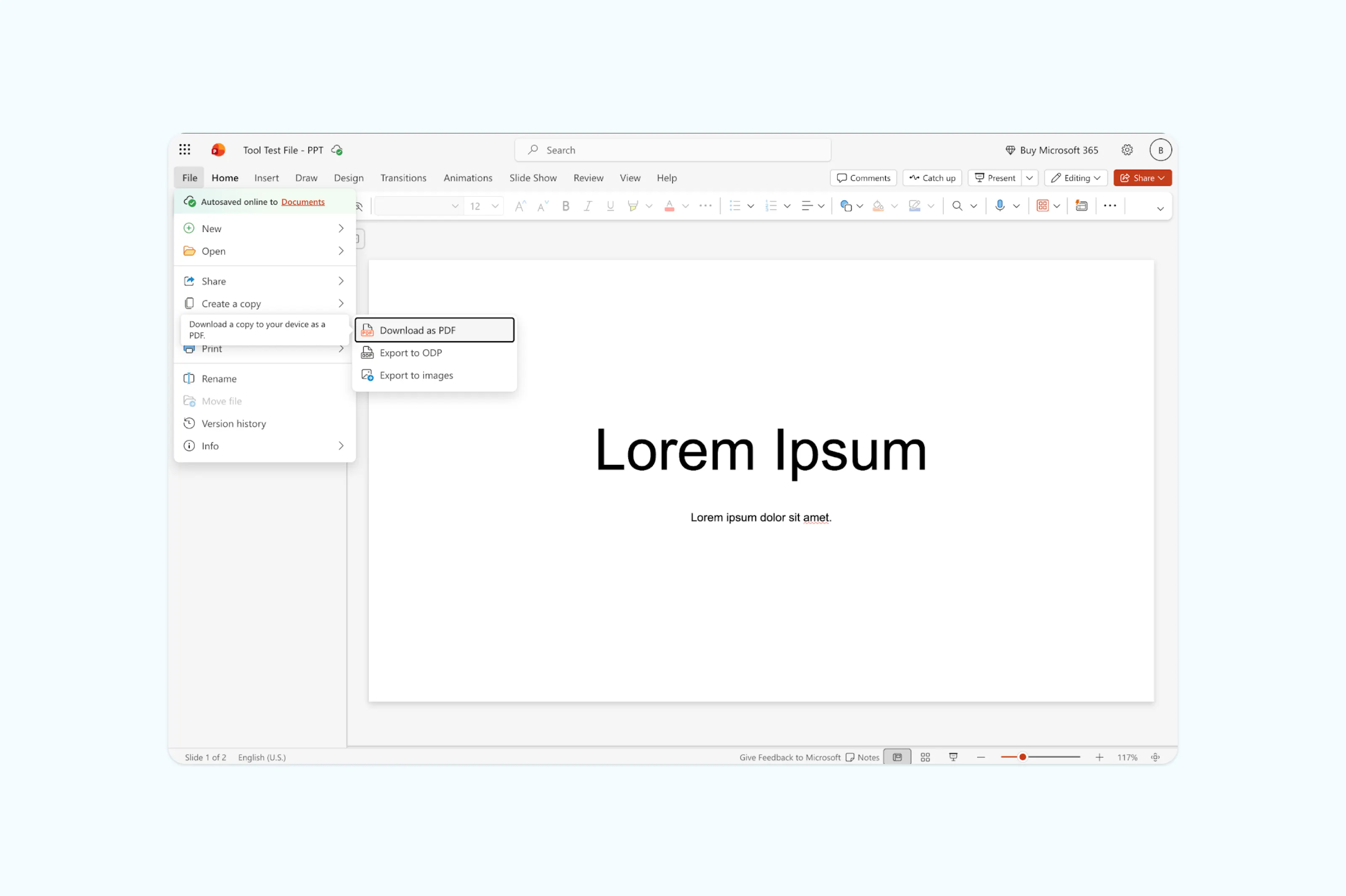
Yes. Just download the PowerPoint mobile app to export directly, though the options are more limited than on desktop.
More PDF tools and guides
Need to do more with your PDF after converting? Lumin offers a full set of free tools to help you keep working without switching platforms. You can edit text, merge multiple files, scan document or convert it into different formats all directly in your browser without downloads required.

Share this post