
How to redact a PDF
Removing sensitive information from a PDF before you share it is a common task when working with legal documents, financial records, or personal data. Proper redaction protects confidential details and ensures the file stays private.
Table of contents
- 1. What is PDF redaction, and why does it matter?
- 2. Method 1: Redact a PDF online with Lumin (free)
- 3. Method 2: Redact PDFs on Mac
- 4. Method 3: Redact PDFs on Windows
- 5. Common redaction mistakes to avoid
- 6. Frequently asked questions
- 7. Protect your sensitive information today
Share this post
Redacting a PDF isn’t just about placing a black box over text. True redaction permanently deletes the information, making it impossible to recover. This guide shows you how to redact PDFs securely using free tools and reliable techniques, while also answering common questions you may encounter when preparing your document.
What is PDF redaction, and why does it matter?
PDF redaction is the process of permanently removing sensitive content from a document. Unlike simply highlighting text in black or placing a box over it, proper redaction eliminates the underlying data completely. This distinction is crucial for maintaining privacy and meeting compliance requirements.
Many people mistakenly think they are redacting when they are only covering text. This leaves the information vulnerable because anyone can remove the black box or copy the hidden text. True redaction removes the data at the file level, ensuring it cannot be recovered by any means.
Method 1: Redact a PDF online with Lumin (free)
The quickest way to redact sensitive information is to use Lumin's free online redaction tool. It permanently removes selected content without requiring any software installation.
How to redact your PDF with Lumin:
- Open Lumin's free PDF redaction tool and sign in or log in to your Lumin account.
- Upload your document.
- Select the text or areas you want to redact.
- Click “Apply redaction” to remove the selected content.
- Download your redacted PDF.
Tip: If the redaction section does not appear, go to Security and then select Redaction. If you need to undo a redaction after applying it, you can revert the document to its original version. To redact multiple sections at once, highlight one area, click elsewhere on the page, and then highlight and redact the next section.
Method 2: Redact PDFs on Mac
Mac users can redact PDFs directly using Preview’s built-in tool, which permanently removes sensitive text.
Using Preview on Mac for redaction:
• Open your PDF with Preview.
• Choose the Tools menu and select “Redact.”
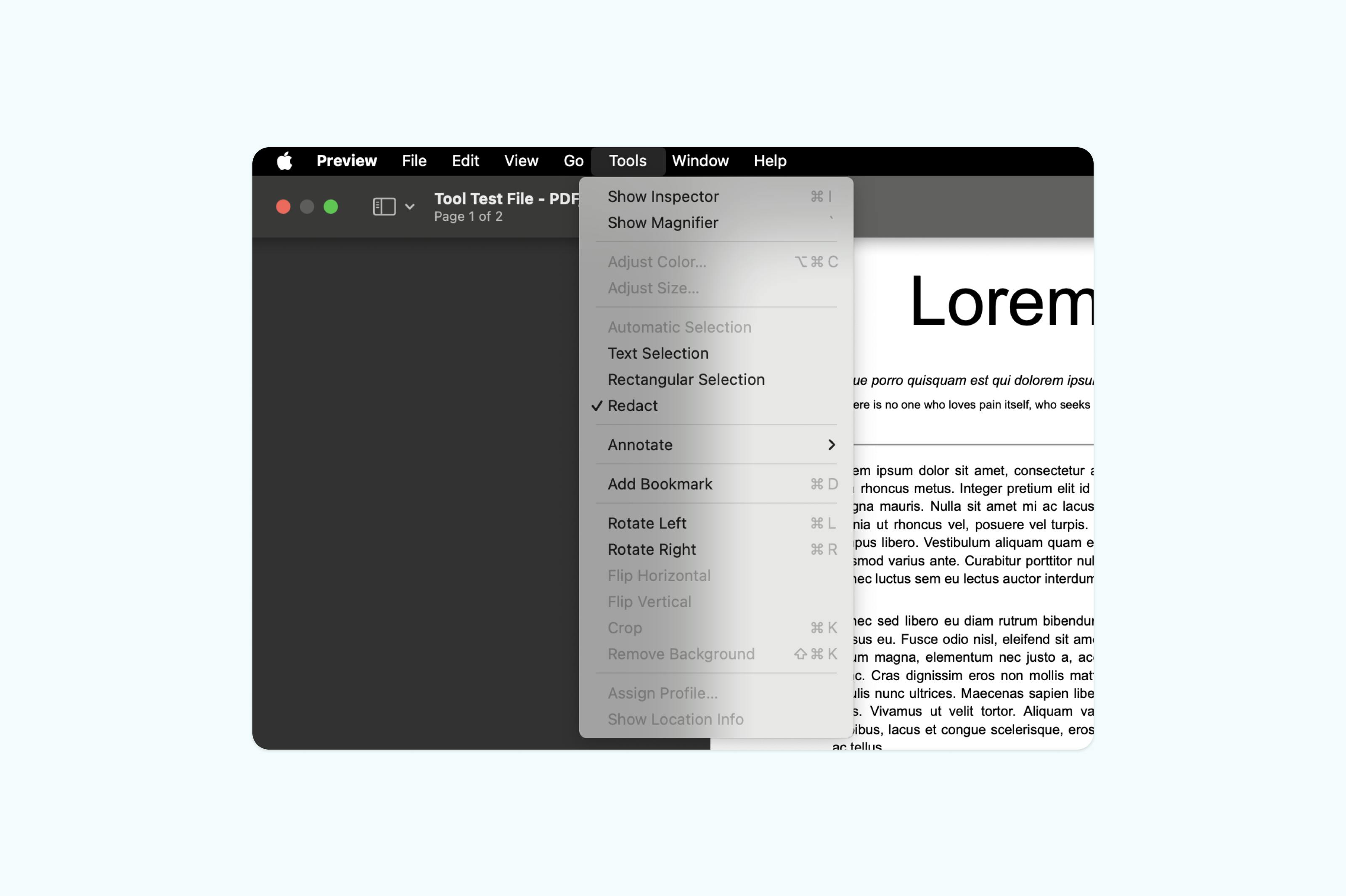
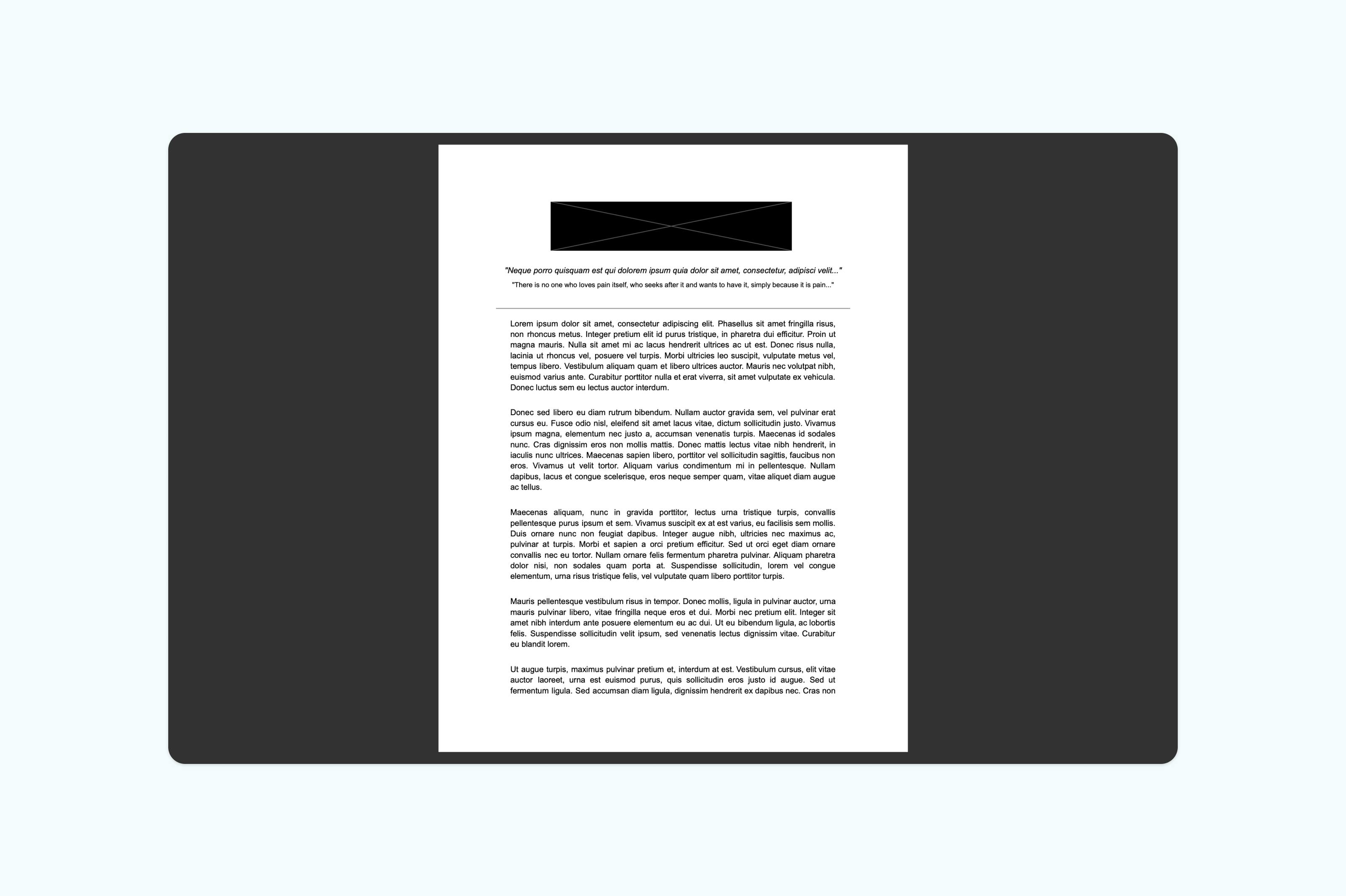
• Highlight the text you want to redact.
• Save your document.
Tip: For stronger security or more advanced redaction features, using a dedicated redaction tool is usually more reliable than Preview alone.
Method 3: Redact PDFs on Windows
Windows doesn't include built-in PDF redaction tools in its default applications. Microsoft Edge and other PDF viewers allow you to view and annotate PDFs, but they can't permanently remove information.
Options for Windows users:
Since Windows lacks native redaction features, your best option is to use Lumin's browser-based tool, which works perfectly in Edge, Chrome, or Firefox. Alternatively, you can download Lumin's free desktop app for Windows, which provides redaction capabilities with the same secure, permanent removal of sensitive data.
Common redaction mistakes to avoid
Understanding what not to do is just as important as knowing the correct methods. These common errors can compromise document security and leave sensitive information exposed.
Using highlighting or text boxes
Simply highlighting text in black or placing opaque boxes over content doesn't remove the underlying information. Anyone with basic PDF editing tools can remove these visual elements and access the original text.
Redacting scanned documents incorrectly
Scanned PDFs are essentially images, so standard text redaction won't work. You'll need to either use image redaction tools or apply OCR (optical character recognition) first to convert the image to searchable text, then redact normally.
Forgetting metadata
PDFs can contain hidden metadata like author names, creation dates, and revision history. Always check and remove metadata when redacting sensitive documents. Lumin's redaction tool includes options to strip metadata automatically.
Frequently asked questions
Is PDF redaction permanent?
Yes. When done correctly, PDF redaction is permanent and irreversible. The redacted information is completely removed from the document file, not just hidden. This is why it is important to keep an unredacted backup if you might need the original information later.
Can you redact a PDF for free?
Yes. There are free online redaction tools like Lumin that allow you to remove sensitive information without watermarks or limitations. You can redact as many documents as needed without creating an account or paying for software.
Is redacting different from editing a PDF?
Yes. Redaction permanently removes information, while editing modifies existing content. Edited text can potentially be recovered through document history, while properly redacted information is gone forever. Always use redaction for sensitive data rather than simply deleting or covering it.
Can redacted PDFs be used in court?
Properly redacted PDFs are commonly accepted in legal proceedings. The key is ensuring the redaction is done correctly by permanently removing the information rather than just covering it. Many courts have specific guidelines for document redaction that must be followed.
Protect your sensitive information today
Don't risk exposing confidential data with improper redaction methods. Whether you're handling financial records, legal documents, or personal information, proper redaction is essential for privacy and compliance.
Redact your PDF securely now. It's free, permanent, and takes just minutes.

Share this post