
How to reorder pages in a PDF
Want to reorganize the pages in your PDF? From fixing scanning mistakes to arranging reports or preparing presentations, there are simple tools that make it quick and easy.
Table of contents
- 1. Why page order matters (and why PDFs make it hard)
- 2. Method 1: Reorder PDF pages online with Lumin
- 3. Method 2: Use Preview on Mac
- 4. Method 3: Reorder PDF pages on Windows
- 5. Tips for organizing multi-page PDFs
- 6. Common issues and solutions
- 7. Frequently asked questions
- 8. Get your PDFs in perfect order
Share this post
Reordering pages can make your document clearer, more polished and easier to follow. Whether you're cleaning up a merged file, adjusting a multi-page form, or revising a proposal, arranging pages helps you present your content in the most effective order. The best part is, you don’t need expensive software or advanced technical skills to get it done.
In this guide, we’ll cover three easy methods to reorder pages in a PDF. You’ll learn how to use free tools, built-in features on your device, and professional software to move, rotate, or remove pages exactly the way you want.
Why page order matters (and why PDFs make it hard)
PDFs are designed to preserve exact layouts, which is great for sharing but frustrating when you need to make changes. Unlike Word documents where you can simply cut and paste, PDFs lock their pages in place.
Common reasons you might need to reorder PDF pages include fixing documents scanned in the wrong order, reorganizing sections of a report or proposal, combining multiple PDFs that need proper sequencing, moving appendices or supporting documents to the right spot, and creating a logical flow for presentations or portfolios. Whatever your reason, you shouldn't have to print and rescan or pay for premium software just to move a few pages around.
Method 1: Reorder PDF pages online with Lumin
The fastest way to rearrange your PDF pages is using Lumin's free online page organizer. It works directly in your browser with no downloads required.
How to reorder pages in your PDF:
- Open Lumin’s free PDF page organizer and upload your document.
- Click “Page Tools” on the left toolbar, then drag and drop pages to arrange them in the order you want.
- For more accurate placement, click “Move” on the top toolbar and use the page numbers to position each page exactly where you need it.
- Preview your changes to confirm everything is in the right order.
- Download your newly organized PDF.
The entire process takes less than a minute, even for large documents. Your original file remains untouched, and the reorganized version maintains all formatting, images, and text quality.
Benefits of using Lumin:
- Free to use
- No watermarks on your reorganized PDF
- Works on Mac, Windows, and mobile devices
- Maintains original document quality
Method 2: Use Preview on Mac
Mac users have a built-in option with Preview, though it requires a workaround that can be time-consuming for larger documents.
How to reorder PDF pages on Mac:
- Open your PDF in Preview.
- Click “View” in the top menu and select “Thumbnails” to display page previews on the left.
- In the sidebar, drag pages up or down to reorder them.
- When you're done rearranging, click “File > Save” to keep the updated order.
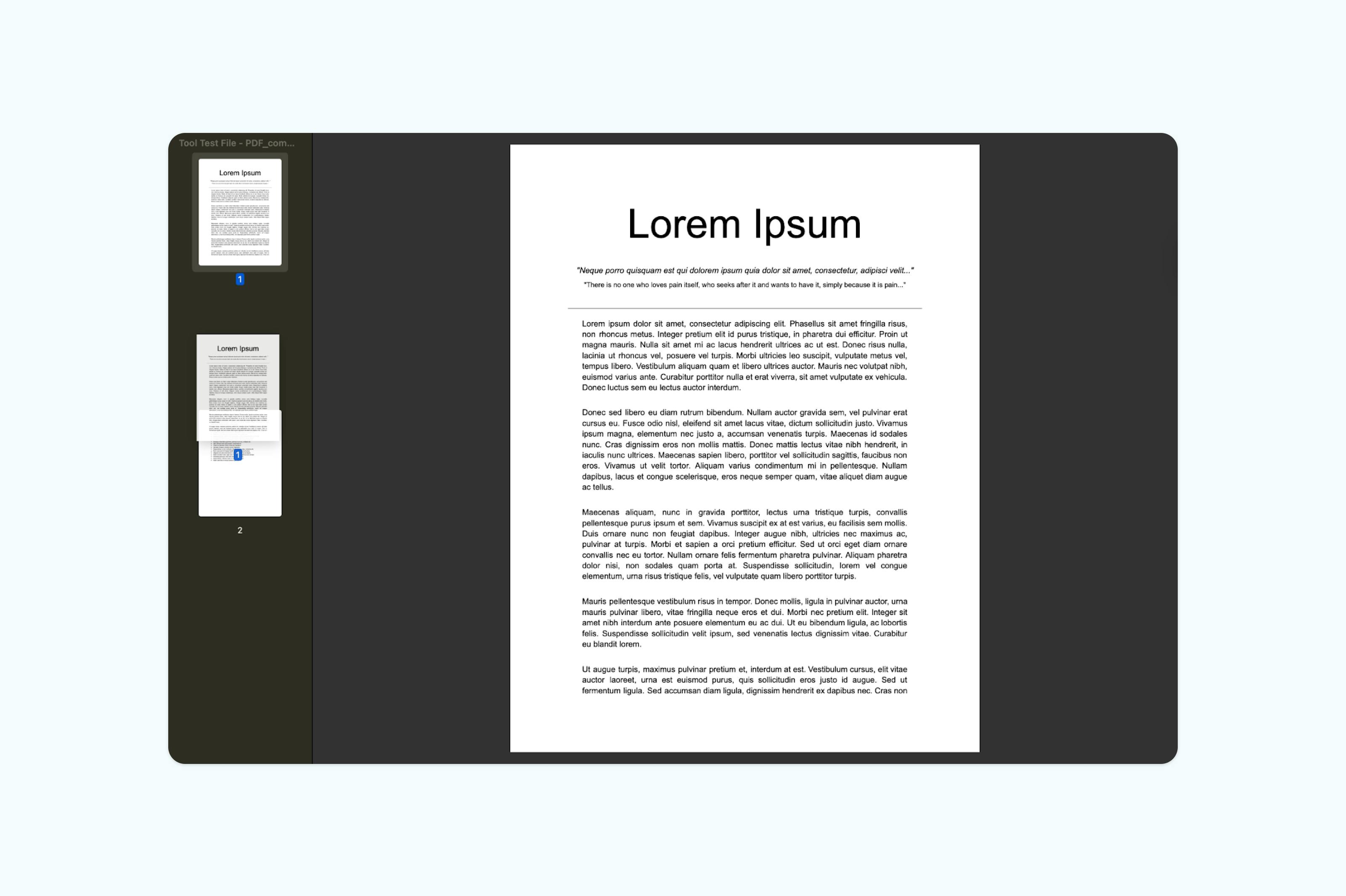
Preview works for basic reordering but lacks advanced features like batch operations or precise page placement tools. It's best for simple tasks with smaller PDFs.
Method 3: Reorder PDF pages on Windows
Windows doesn't include built-in PDF editing tools, but there's a workaround using the Print function that can help with basic reordering tasks.
How to reorder pages using Windows Print:
- Open your document in Microsoft Word.
- Apply Heading styles (Heading 1, Heading 2, etc.) to the sections or pages you want to move. (Note: Highlight a title or section → go to “Home → click a Heading style”.)
- Open the Navigation Pane by clicking “View → Navigation Pane.”
- In the left sidebar, select the Headings tab. You’ll see all your sections listed.
- Click and drag any heading up or down to instantly reorder your document. Word will move the entire section tied to that heading.
- Save your file when finished.
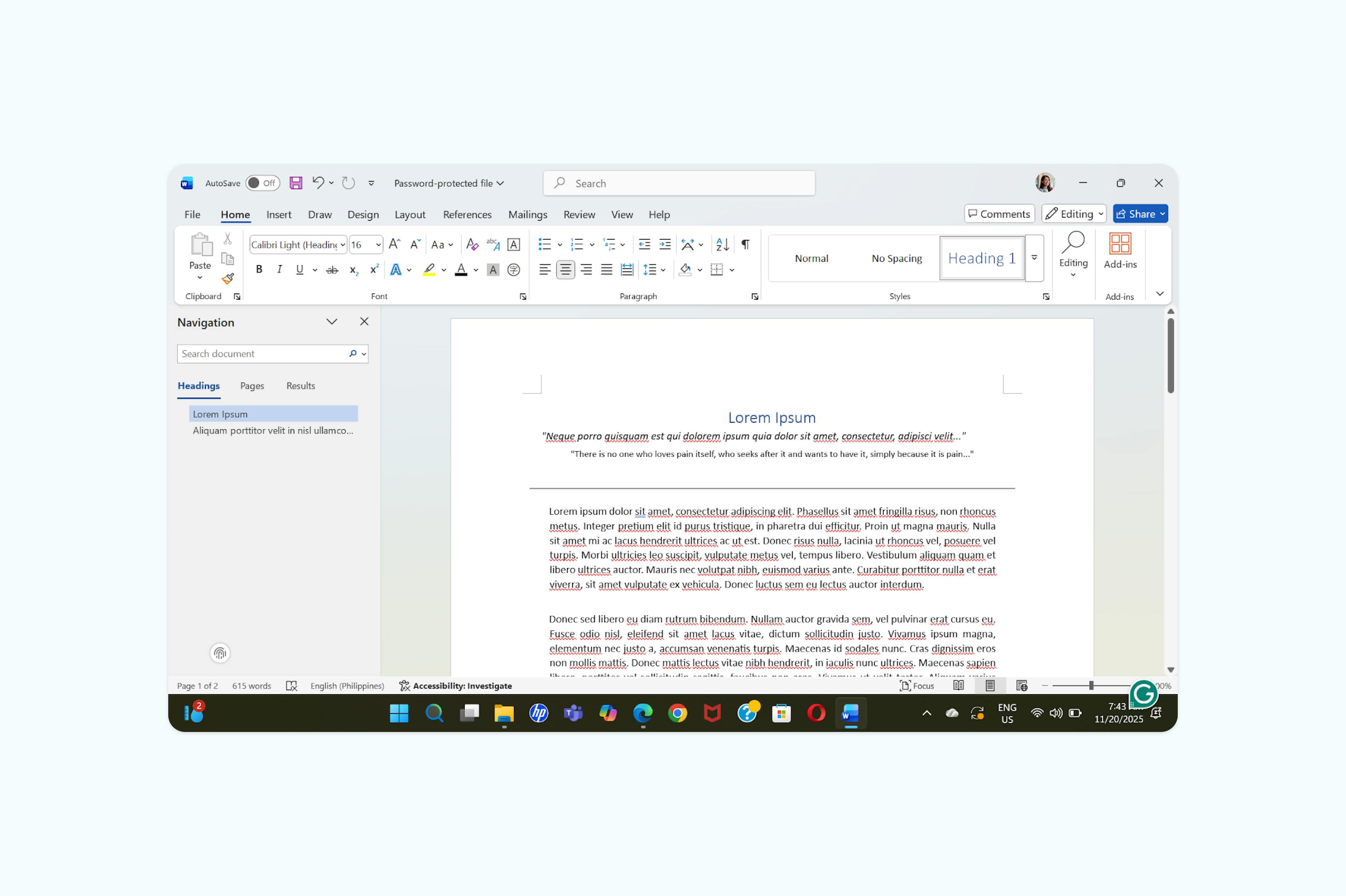
Microsoft Word’s heading method helps reorganize long documents, but it only works when your content is structured with proper headings. It doesn’t rearrange actual PDF pages and requires converting the file first. It’s best for text-heavy documents where sections, not individual pages, need to be moved.
Tips for organizing multi-page PDFs
Before you start rearranging pages, create a backup of your original PDF. Reordering can get complicated, and having the original file makes it easy to restart if something goes wrong.
For large documents, organize your pages in sections instead of trying to fix the entire file at once. Group related pages together to maintain logical and consistent content.
Think about the final purpose of your document. The ideal reading order on a screen may be different from the order needed for printing, especially for double-sided layouts or booklet formatting.
Use page numbers or temporary labels to track your progress. Many PDF tools allow you to add markers, which make it easier to identify and sort content during the reordering process.
Common issues and solutions
"I can’t select or move certain pages."
Some PDFs have security restrictions that block editing. Use a PDF unlocker first, or check whether you have permission from the document owner.
"The page quality decreased after reordering."
This can happen with tools that compress or re-render pages. Lumin maintains the original quality, preserving all text, images, and formatting exactly as they appear in your file.
"I need to reorder hundreds of pages."
For very large PDFs, break the process into smaller batches. Reorder groups of 50–100 pages at a time, then merge the sections afterward. This method is easier to manage and helps prevent mistakes.
Frequently asked questions
Can I reorder PDF pages on my phone?
Yes, Lumin’s web-based tool works on mobile browsers. For the best experience on smaller screens, rotate your device to landscape mode when dragging and dropping pages. You can also use Lumin’s mobile apps for iOS and Android, which provide interfaces optimized for touchscreen page organization.
How do I reverse the order of pages in a PDF?
You can manually drag pages starting from the last page and work backward. This method is especially useful for documents that were scanned or exported in reverse order.
Can I reorder scanned PDF pages?
Yes, scanned PDFs can be reordered just like any other PDF, and the page images will retain their original quality. If you want to edit the text within scanned pages, you’ll first need to run OCR (Optical Character Recognition) to convert the images into editable text.
Get your PDFs in perfect order
Stop wrestling with page order problems. Whether you're fixing a simple mistake or completely restructuring a document, Lumin makes PDF page reordering quick and painless.
Reorder your PDF pages now - it's free, secure, and takes just seconds to get your document exactly how you want it.

Share this post