
How to save one page of a PDF
Author
Regine Dy
Published
Jan 2, 2026
Categories
PDF editing
Read time
4 mins
Pulling out one important page from a lengthy PDF can feel tedious, but it doesn’t have to be. Maybe you’re reviewing a large report and only want to keep the executive summary, or you’re working with merged documents and want to save just the signature page on its own. You might also be handling contracts, invoices, presentations, or multi-page forms where only one section matters.
Table of contents
- 1. Method 1: Extract pages with Lumin's free PDF tools
- 2. Method 2: Extract pages on Mac using Preview
- 3. Method 3: Extract pages using Microsoft Print to PDF
- 4. When you need more than basic extraction
- 5. Frequently asked questions
- 6. Save any page from any PDF
Share this post
Extracting a single page is useful for sharing information, organizing files, creating attachments, or keeping records without carrying the full document. With the right tools, saving just one page from any PDF becomes quick, simple, and completely free. In this guide, we’ll walk you through different methods and answer common questions to help you save any page you need.
Method 1: Extract pages with Lumin's free PDF tools
The simplest way to save one page of a PDF is to use Lumin's online page extractor. This browser-based tool works on any device and doesn't require software installation or sign-up.
Here's how to save a single page from your PDF:
- Open Lumin's free extract PDF tool and upload your PDF.
- Next, enter the page number you want to save (for example, enter "1" to extract only page 1.)
- Click "Extract" to create a new PDF with just that page.
- Download your single-page PDF or save it directly to Google Drive.
Note: You’ll be automatically directed to the Split & Extract section after uploading your PDF to Lumin’s free Extract PDF tool. If not, just click Page tool on the left toolbar and select Split & Extract from the ribbon to choose and extract the page you want.
Lumin preserves all formatting, images, and text exactly as they appear in the original document. The tool also lets you extract multiple specific pages if needed, just enter page numbers separated by commas.
Method 2: Extract pages on Mac using Preview
Mac users can extract PDF pages without any extra software using the built-in Preview app.
Here's how to save a single page from your PDF:
• Open your PDF in Preview.
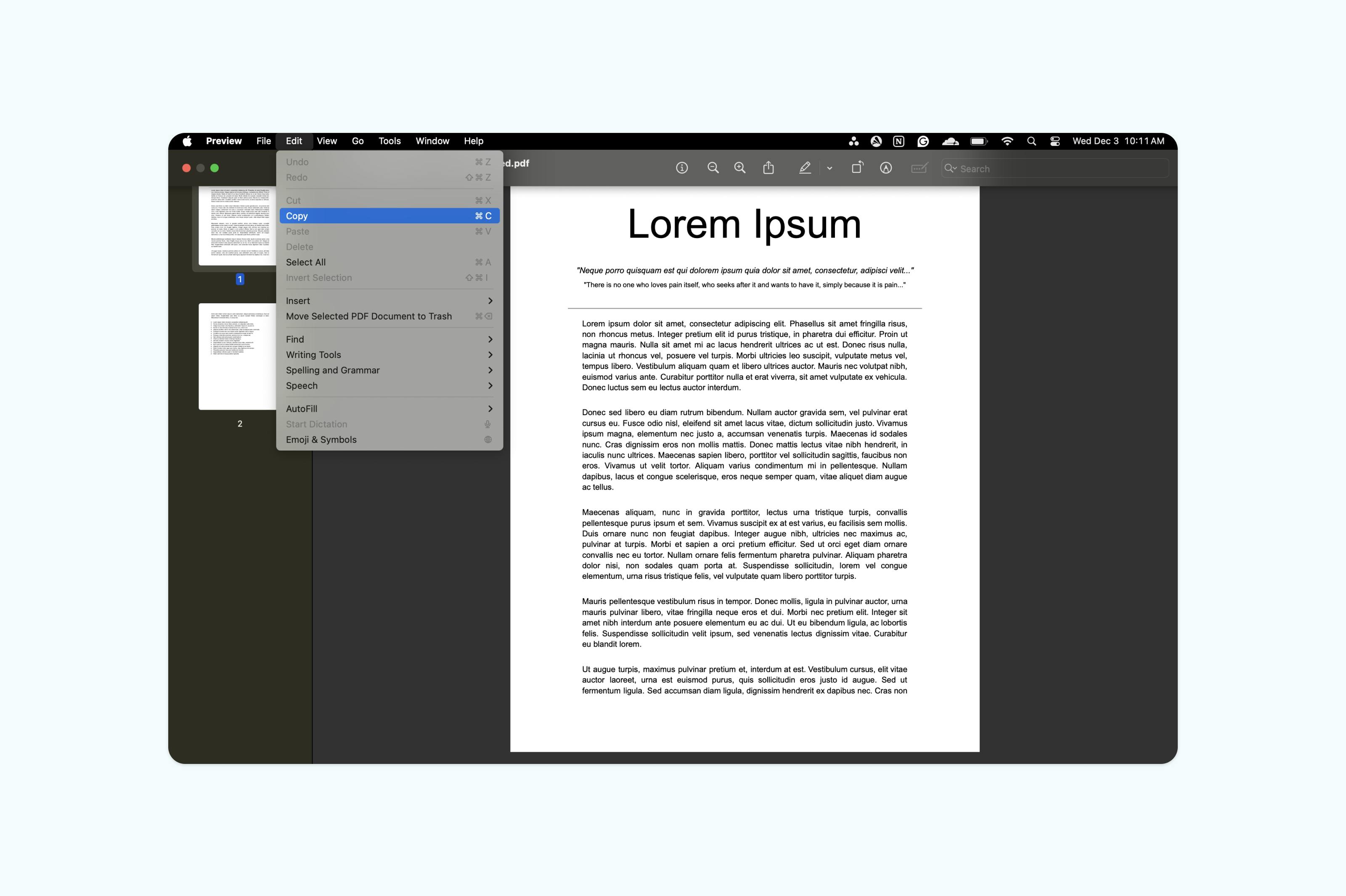
• Go to the page that you want to save. Press “Command+C” or choose “Edit > Copy”.
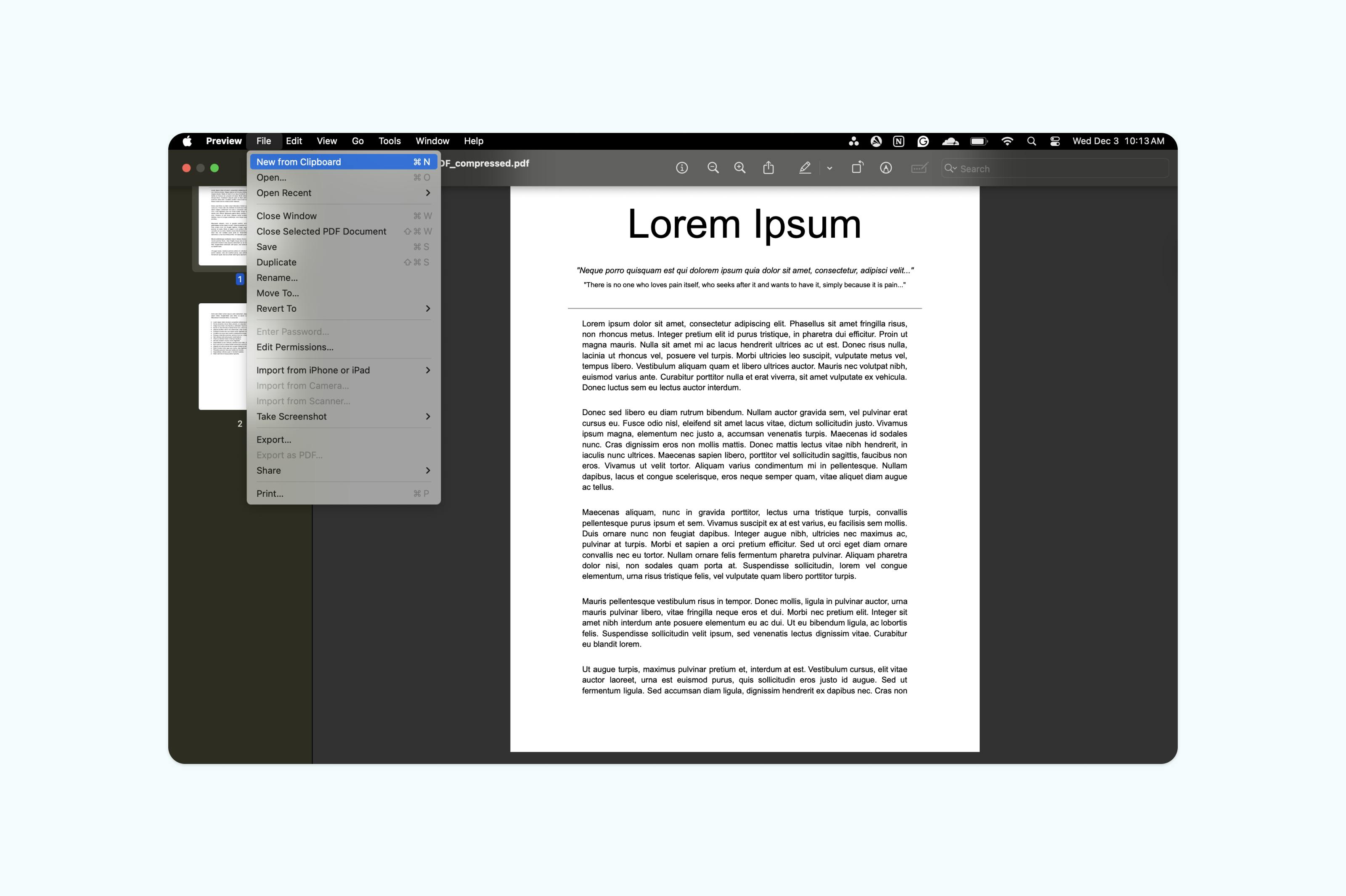
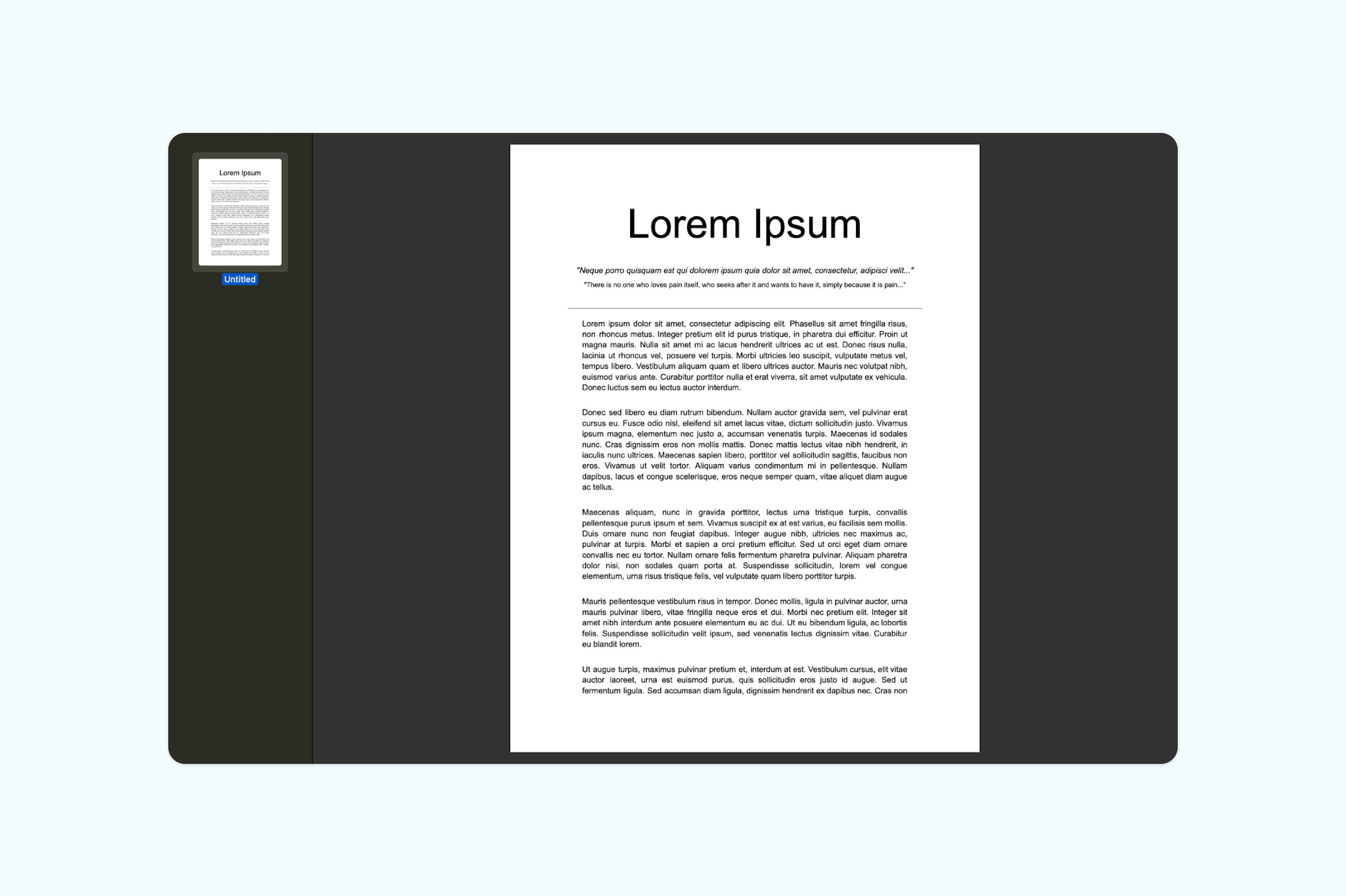
• Choose “File > New from Clipboard” or simply press “Command+N”. A new Preview window will open containing only the copied page.
• You now have a document with the extracted page.
• Save the document by selecting “File > Export as PDF”.
Note: Preview keeps the exact formatting, images, and text from the original PDF when you copy a page to a new document, but it doesn't offer the same annotation and editing features you’d find in dedicated PDF tools.
Method 3: Extract pages using Microsoft Print to PDF
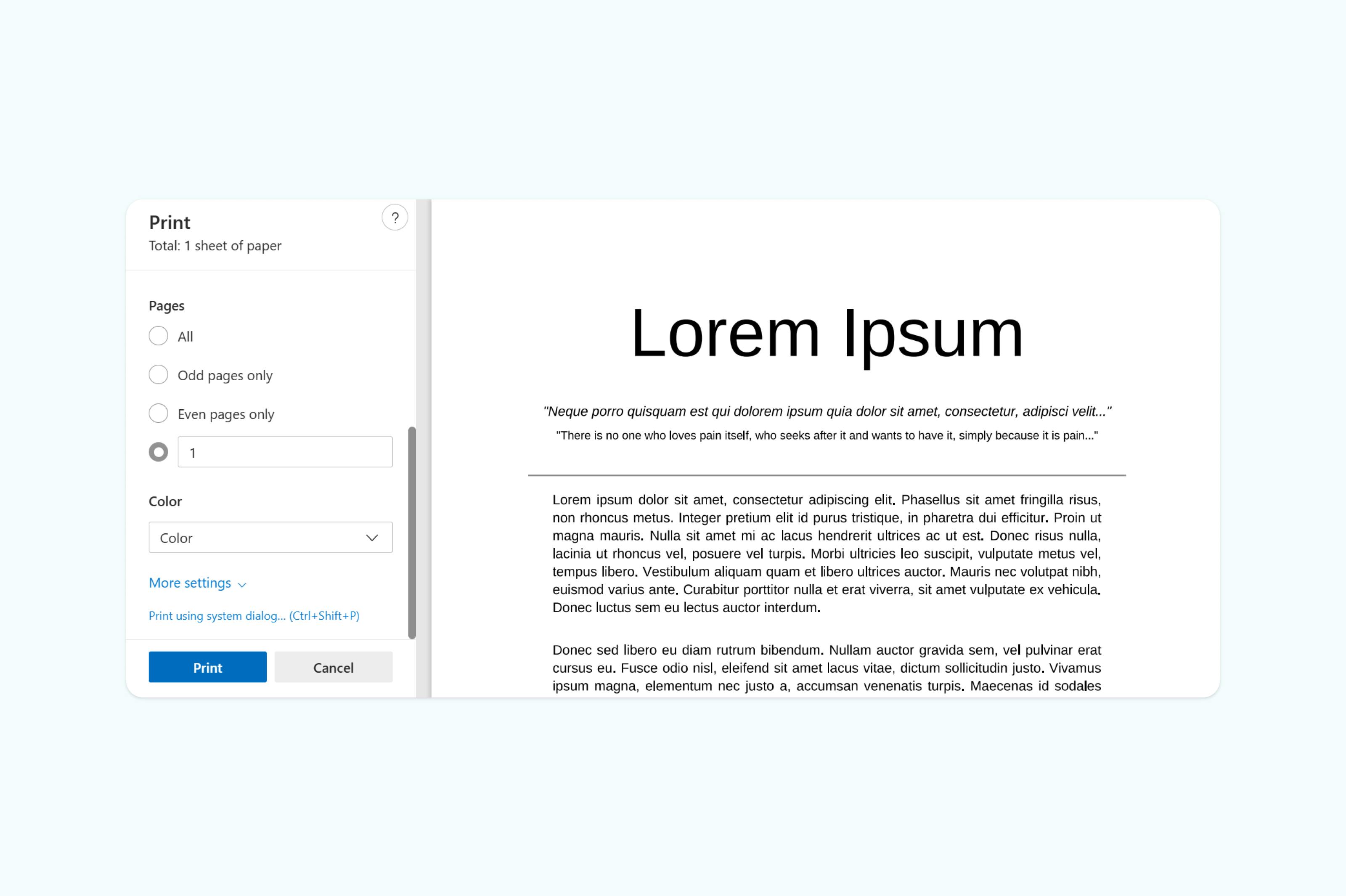
On Windows, there isn’t a built-in app like on Mac, but you can still use Microsoft Edge to save a single page as a PDF.
Here's how to save a single page using Microsoft Edge:
- Open your PDF in any PDF viewer (Edge, Adobe Reader, etc.).
- Click “Print” and select “Microsoft Print to PDF” as the printer.
- Under "Pages," enter the page number you want to save (for example, "1" for page 1).
- Click “Print”, choose a save location, and enter a file name for your new PDF.
When you need more than basic extraction
Sometimes saving one page is just the start. You might need to annotate it, save your PDF as a JPG, combine it with pages from other PDFs, or convert it to a different format. Lumin's PDF editor provides these advanced editing tools:
- Add comments or highlights to your extracted page.
- Merge your single page with other documents.
- Convert the page to Word, JPG, or other formats.
- Password-protect sensitive pages.
- Compress large pages for easier sharing.
These features are especially useful when you're extracting pages for specific business purposes like creating contract amendments or preparing document packages.
Frequently asked questions
Can I save multiple separate pages as individual files?
Yes, most tools that extract single pages can also extract multiple pages. With Lumin, you can extract pages 3, 7, and 15 as three separate PDF files in a single operation. Just select "Split by page" instead of extracting.
Will the extracted page keep its original quality?
When you properly extract a page rather than taking a screenshot, the page maintains its original quality, resolution, and text selectability. All three methods described above preserve the full quality of your PDF page.
Can I extract pages from a password-protected PDF?
You’ll need to enter the PDF password before extracting pages. Once unlocked, you can extract pages normally using any of the methods above. If you’ve forgotten the password, you’ll need to use a PDF password recovery tool first.
Why can't I select individual pages in some PDFs?
Some PDFs are scanned images rather than true text documents. While you can still extract pages from these PDFs, you may not be able to select or edit the text within them. Lumin has OCR capabilities, so its extraction tools work with both text-based and image-based PDFs.
Is it legal to extract pages from PDFs?
Extracting pages for personal use or from documents you own is generally fine. However, you should always respect copyright and confidentiality agreements. Do not extract and distribute pages from documents you do not have permission to share.
Save any page from any PDF
Whether you're organizing documents, preparing presentations, or sharing specific information, being able to extract individual PDF pages is an essential skill. The methods we've covered give you flexibility to work online or offline, with or without special software.
Start with Lumin's free tool for the quickest results, especially if you need additional features like merging or converting your extracted page. For offline work, the Print to PDF method provides a reliable alternative that's built into every modern operating system.
Share this post