
How to edit a password protected PDF
You've received a PDF that needs updating, but when you try to edit it, nothing happens. The file is password protected, and you're stuck. This is a common problem with contracts, forms and shared documents where the original creator has restricted editing access.
Table of contents
- 1. Two types of PDF password protection
- 2. Method 1: Unlock and edit with Lumin
- 3. Method 2: Use Google Drive
- 4. Frequently asked questions
Share this post
The good news is that if you have the password (or if the file only has permission-level restrictions), editing a protected PDF is an easy task that everyone can do. This guide walks you through two reliable methods to get it done.
Two types of PDF password protection
Before you jump in, it helps to understand what kind of protection you're dealing with. PDFs can have two types of password security, and each works differently.
An open password (also called a user password) prevents anyone from even opening the file. You'll see a password prompt before the document loads. Without the correct password, you can't view or interact with the document at all.
A permissions password (also called an owner password) lets you open and view the PDF, but restricts actions like editing, copying text or printing. You can read the document, but you'll notice that editing tools are grayed out or disabled. This is the more common type of protection on shared business documents and forms.
The method you need depends on which type of protection has been applied. If you have the password, the process is simple regardless of the type.
Method 1: Unlock and edit with Lumin
The fastest way to edit a password protected PDF is to upload it to a tool that can handle protected files directly. Lumin's Unlock PDF tool lets you remove the password so you can start editing in your browser.
Here's how to do it:
- Go to the Lumin Unlock PDF tool and upload your protected PDF.
- Enter the current password when prompted to access the content.
- Select the Security tab in the toolbar and click "Remove Password" to strip the restrictions from the file.
- Once you’ve entered the correct password, click “Edit PDF” on the left side of the toolbar to start editing.
- When you’re done, download your updated PDF or save it directly to Google Drive for easy access and sharing.
Note: You'll need to know the original password to use this method. Once the password is removed, you can open your file to edit text, add annotations, fill forms and more. Lumin also integrates with Google Drive, so you can unlock and save files back to your cloud storage instantly.
Method 2: Use Google Drive
Google Drive offers a built-in workaround for editing protected PDFs, particularly those with permissions-level restrictions. It won't bypass an open password, but it can help with files that are view-only due to editing restrictions.
Here's how to do it:
- Upload your protected PDF to Google Drive.
- Right-click the file and select "Open with" then "Google Docs."
- Google will convert the PDF into an editable document. Make your changes as needed.
- Once done, go to File then "Download" and select "PDF Document" to save your edited version.
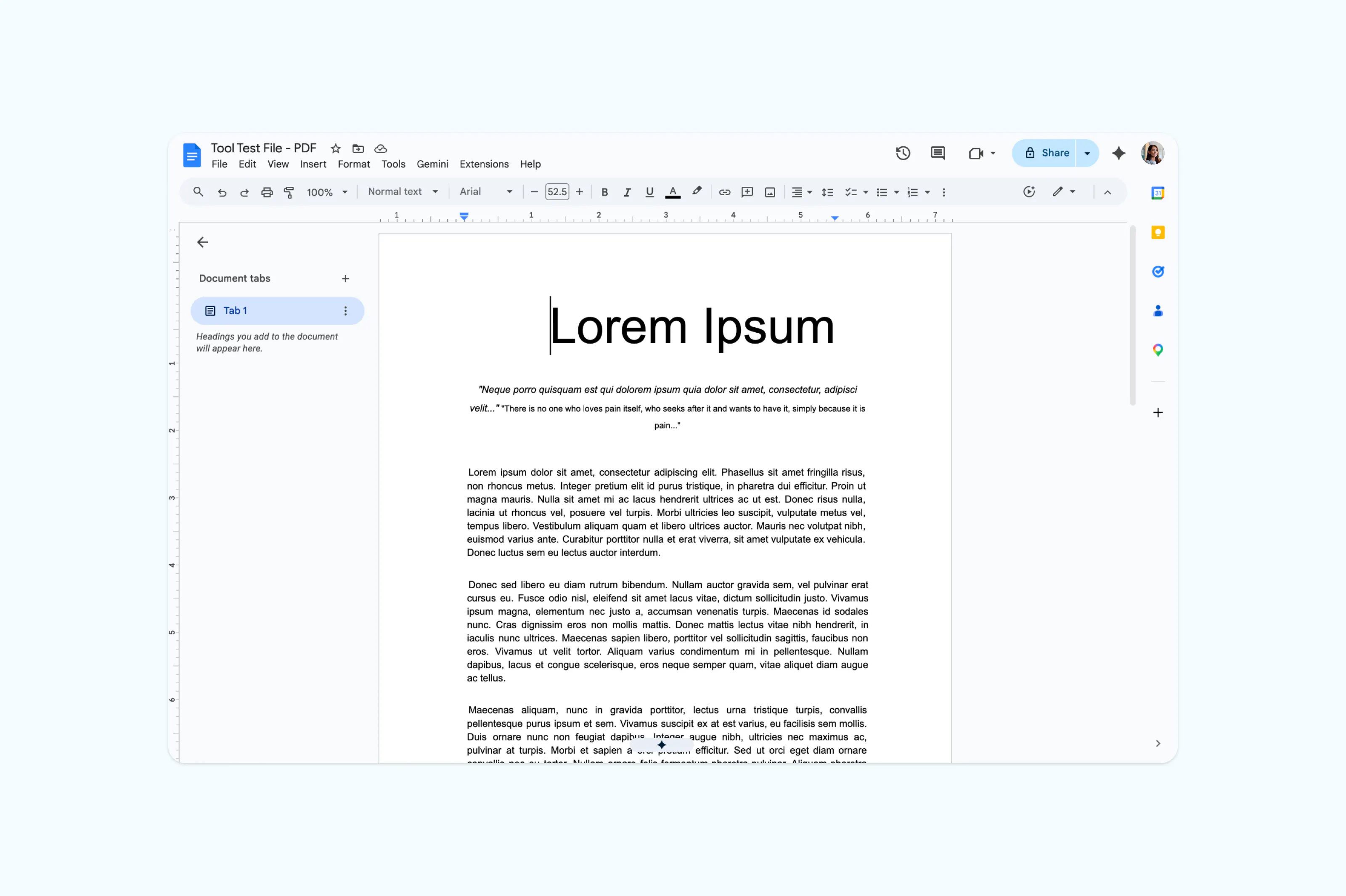
This method works best on simple, text-heavy documents. PDFs with images, multi-column layouts or complex formatting may lose their structure during conversion.
Frequently asked questions
Can you edit a PDF without the password?
If the PDF has an open password, you need that password to access the file. There is no legitimate way around this. For PDFs with permissions-level restrictions only, some tools can remove editing restrictions and allow you to make changes. The approach depends on the type of protection applied to the file.
How do I remove password protection from a PDF?
If you have the password, you can remove protection by uploading the file to Lumin's Unlock PDF tool, entering the password and using the Security tab to remove it. Once the password is removed, download the unrestricted version or save it to Google Drive.
Can I convert a password protected PDF to Word?
Yes, as long as you can open the file. If the PDF has an open password, you'll need to enter it before the conversion can begin. Once unlocked, a PDF to Word converter will handle the rest. Lumin's PDF to Word converter supports this workflow directly.
How do I edit a PDF document?
If the PDF isn't password protected and you just need a general-purpose editor, you can upload it to Lumin's free PDF editor. From there, you can edit text, add annotations, fill forms, merge files and more, all from your browser with no downloads required.

Share this post