
How to edit a PDF on iPhone
Are you looking to update a PDF while on the go? This guide shows how to edit documents using free apps and built-in iOS tools.
Table of contents
- 1. Method 1: Edit PDFs with the Lumin app (annotations, signing, and comments)
- 2. Method 2: Use the built-in Markup tool (for basic edits)
- 3. Method 3: Edit PDFs using other online PDF editors
- 4. How to edit specific types of content
- 5. Troubleshooting common issues
- 6. Final note
Share this post
Whether you need to fill out a form, annotate a document, or add your signature, editing PDFs on your iPhone has become remarkably simple. You no longer need to wait until you're back at your computer or pay for expensive software.
In this guide, we'll walk you through the most effective methods for working with PDFs on your iPhone, starting with the easiest, free options. We’ll cover everything from annotations to signatures, as well as tips for handling common challenges, such as scanned documents or password-protected files.
Method 1: Edit PDFs with the Lumin app (annotations, signing, and comments)
On iPhone, the Lumin app makes it easy to review and collaborate on PDFs. While text editing is available only on desktop, you can still annotate, comment, and add your signature right from your phone.
Here’s how to use it:
- Download the free Lumin app from the App Store and create an account.
- Open the app and tap the “+ button to upload your PDF from Files, Photos, or cloud storage.
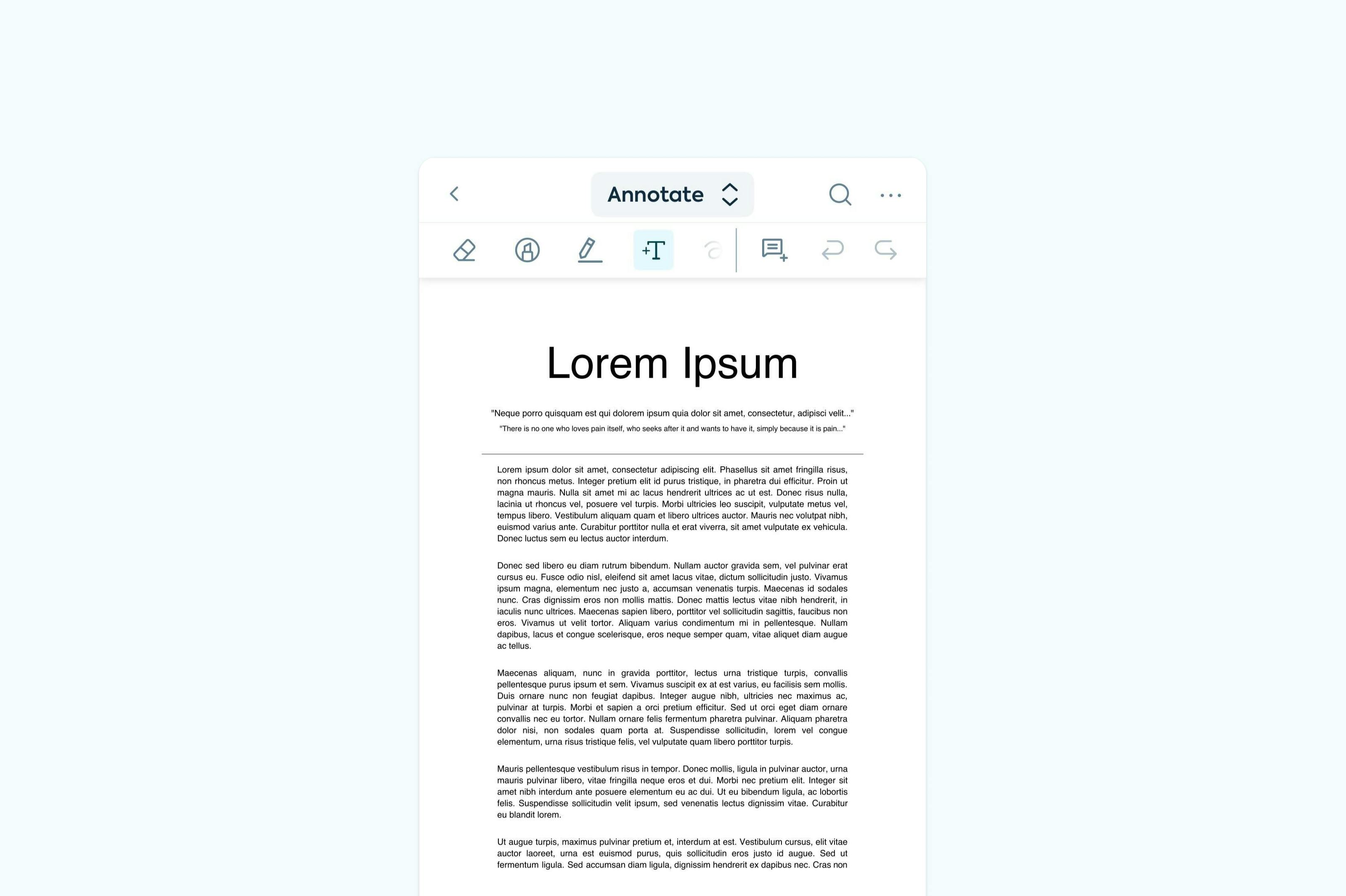
- Tap “Annotate” on the top center toolbar to open the Annotation menu. From here, you can choose Highlight to mark text or Comment to add sticky notes and feedback.
- If you want to draw, select Draw from the top center toolbar to sketch or write freely on your PDF.
- If you need to add your signature or fill in form fields, choose Fill and Sign from the top center toolbar.
- After making your changes, you can save your edits and share the file directly from the app.
Note: For bigger edits like changing text or restructuring a document, you can continue working on Lumin’s desktop editor or use another dedicated PDF editor on your device.
Method 2: Use the built-in Markup tool (for basic edits)
Your iPhone includes a built-in PDF Markup tool in the Files and Mail apps. While it can’t edit existing text, it’s perfect for quick notes, drawings, and signatures.
How to use Markup:
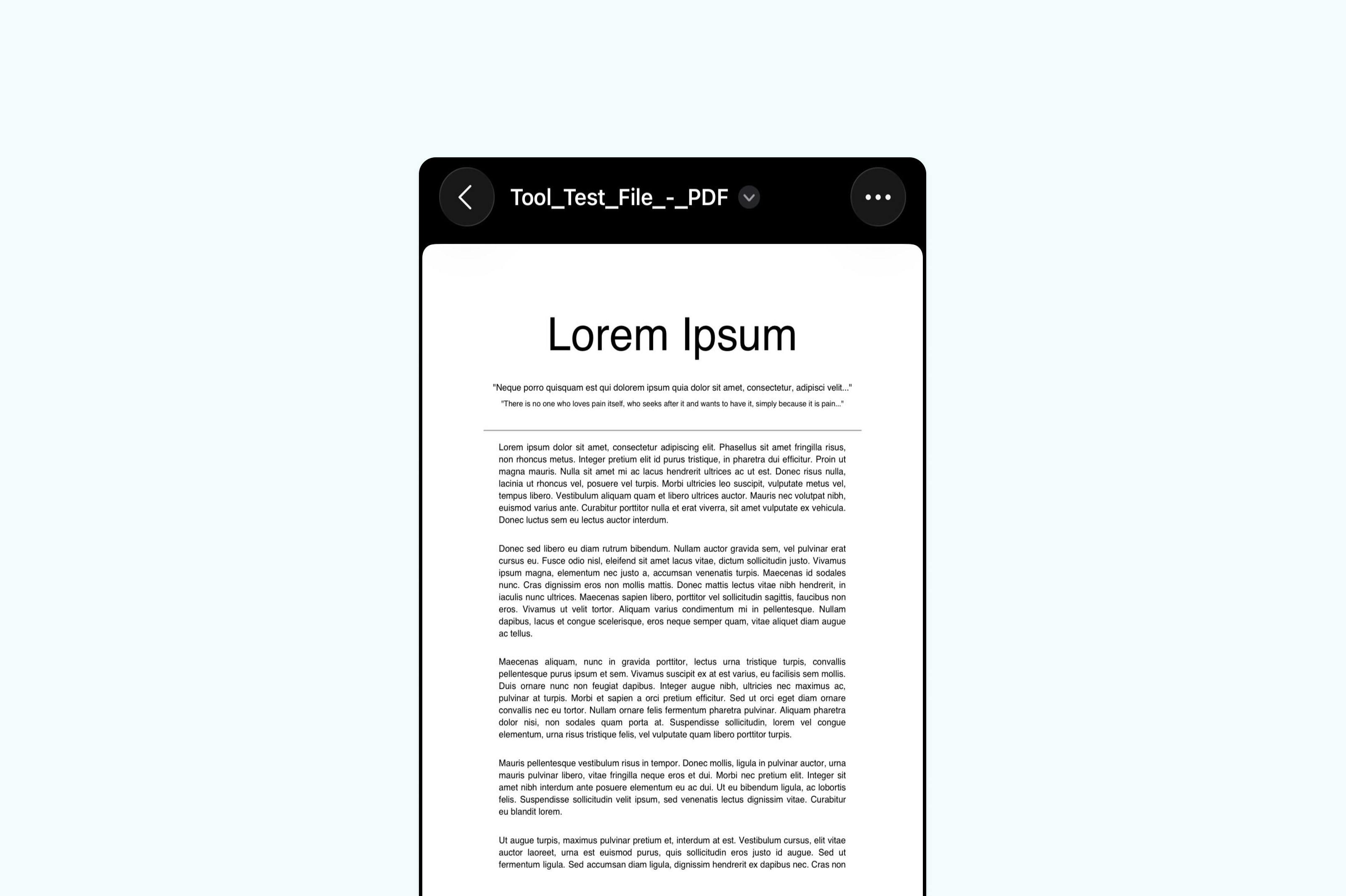
- Open the PDF in the Files app and tap it to view.
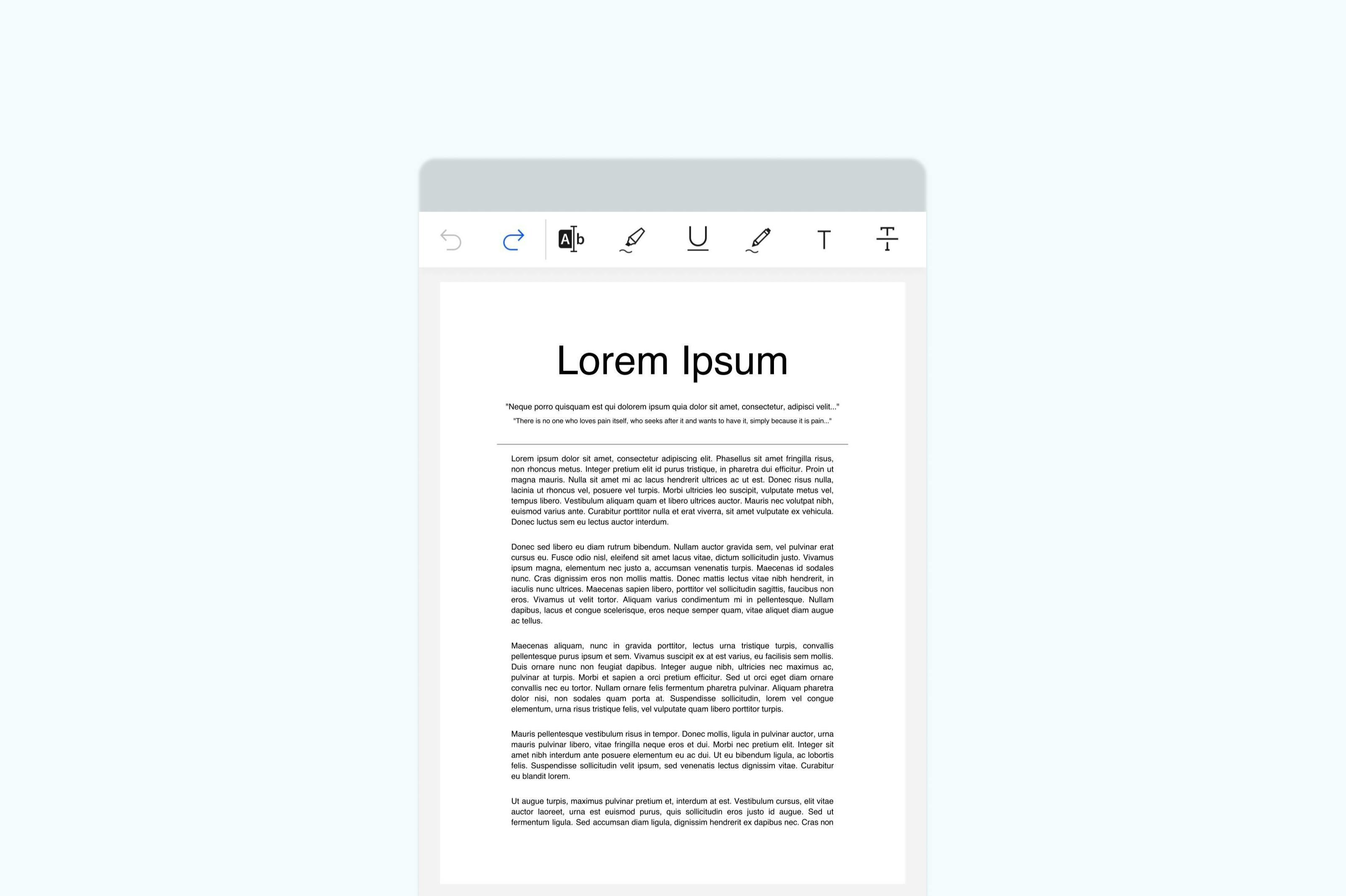
- Tap the Markup icon (pen) on the toolbar below.
- Use the tools to draw or write with your finger.
- Tap the “+ button” to add text boxes and stickers, insert shapes or arrows, add a signature, or highlight sections.
- When you’re done, tap the Markup icon (pen) on the toolbar above to save your changes.
Method 3: Edit PDFs using other online PDF editors
If you want to make advanced edits like changing text, adding images, or rearranging pages, you can use other online PDF platforms directly on your iPhone. These tools work in your browser and don’t require installation.
This is the general step-by-step process in online PDF editors:
- Open Safari or Chrome on your iPhone and go to a PDF editing platform.
- Tap “Upload” or “Choose file” then select your PDF from the Files app or cloud storage.
- Once the PDF loads, tap the Edit or Pencil icon to enter editing mode.
- Tap any text box to edit existing text, or tap the “T” (text) icon to add new text.
- Tap the Highlight, Pen, or Shape icons to draw, annotate, or highlight sections.
- When done, tap “Save or Download” to save your edited PDF back to your device.
How to edit specific types of content
Filling out PDF forms
If your PDF has fillable fields, you can tap directly into them to type. For PDFs without interactive fields, add text boxes with Markup or a PDF editor.
Adding signatures
Both Lumin and Markup allow you to sign PDFs directly on your iPhone by drawing with your finger, using a saved signature, or typing one.
Troubleshooting common issues
- Can’t edit text? The PDF may be scanned or restricted. Full text editing requires desktop tools or a dedicated editor.
- File won’t save? Check iPhone storage or app permissions in Settings.
- Need to edit a PDF from email? Long-press the PDF attachment → tap Share → choose Save to Files or open it in Lumin to annotate or sign.
Tips for better PDF editing on iPhone
- Zoom in for more precise edits.
- Use a stylus for cleaner annotations.
- Switch to landscape mode for wider documents.
- Sync to a desktop for advanced text editing features.
FAQs
Can I edit a PDF on an iPhone for free?
Yes. The built-in Markup tool lets you annotate, highlight, and sign for free. Lumin also has a free iPhone app where you can annotate, comment, and sign.
Can I edit text in a PDF on iPhone?
Direct text editing isn’t available on iPhone with Lumin yet. You can add comments or annotations on mobile, but to change text, you’ll need to use a desktop editor.
Can I edit a PDF from Gmail on my iPhone?
Yes. Open the PDF attachment, tap the share button, and save it to Files or open it directly in your PDF app to annotate or sign.
How do I make a PDF editable on an iPhone?
If your PDF is a scanned image, use a PDF editor with OCR on a desktop to make text editable. On iPhone, you can still annotate, sign, and add comments.
Final note
Ready to work with PDFs on your iPhone? With Lumin, you can annotate, sign, and collaborate on documents for free. For advanced text editing and layout changes, switch to the desktop version or use a dedicated PDF editor on another device.

Share this post