
How to sign a PDF on an iPhone
Signing a PDF on your iPhone is simple once you know which tools you need. You can now manage the entire paperwork trail without ever touching a printer, whether it’s a task like finalizing a lease or approving a school form.
Table of contents
- 1. Method 1: Use Lumin Sign
- 2. Method 2: Use iPhone's built-in tool
- 3. Frequently asked questions
- 4. Need more than a quick signature? Try Lumin Sign
Share this post
By keeping the process entirely digital, your iPhone turns what used to be a chore into a task finished in just a few taps. Below are the following methods that cover the best ways to sign, from integrated native options to advanced cloud-syncing with Lumin.
Method 1: Use Lumin Sign
If you want a fast, free, and secure way to sign PDFs from your iPhone, Lumin Sign is a great place to start. It's available as a free iOS app, so you can sign documents on the go.
How to sign a PDF with Lumin Sign on iPhone:
- Download the Lumin Sign app from the App Store and sign in. It’s free to create an account.
- Tap the plus (+) icon to upload your PDF.
- Select who needs to sign: Me, Me and Others, or Others Only. If others are signing, enter their email addresses and set a due date.
- Tap “Signature” and choose “New Signature”. Draw, type or upload your signature.
- Place the signature where needed, then save or share the document.
Note: Lumin Sign lets you send documents for signing, track progress and set a signing order. It’s a secure and legally binding way to sign, backed by third-party audits and best-practice security measures including encryption and physical safeguards.
Method 2: Use iPhone's built-in tool
Your iPhone comes with a built-in signing feature called Markup. It's available across several native apps including Files, Mail, and Notes, and works well for quick, one-off signatures.
How to sign a PDF using iPhone's built-in tool in the Files app:
- Open the Files app and find your PDF.
- Tap the file to open it, then tap the signature icon (square with three dots and a pen) in the bottom-left corner.
- Tap the “+” button at the bottom, then choose “Signature.”
- Draw your signature with your finger and tap Done when satisfied.
- Drag your signature to the right spot on the document and resize if needed.
- Tap "Done" to save your signed PDF.
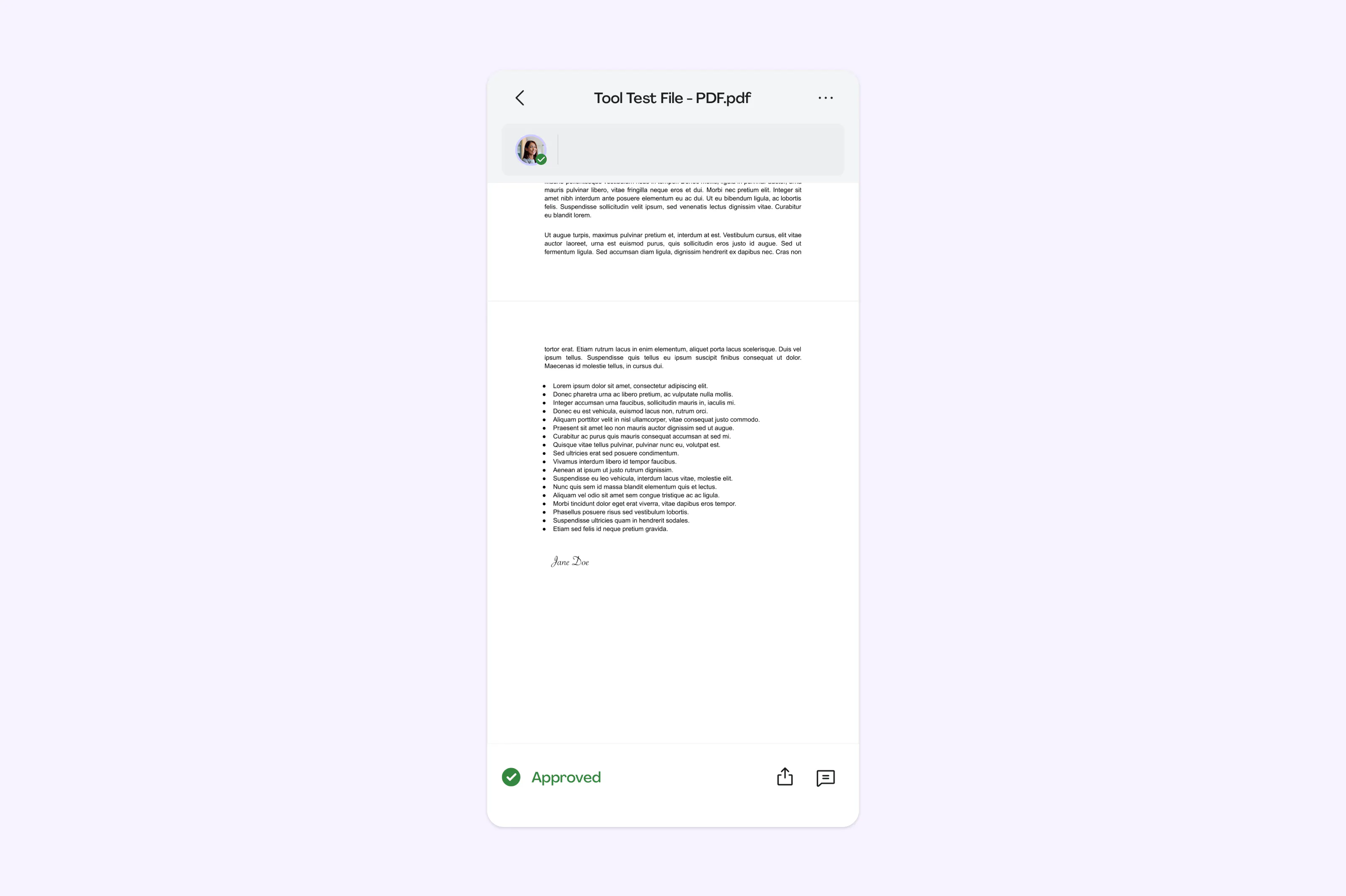
Note: iOS saves your signature automatically after you create it the first time, so you can reuse it on future documents without redrawing it. iOS built-in tools are great for personal use and simple forms. However, it doesn't support sending signature requests to others, tracking signing progress, or adding legally verified audit trails.
Frequently asked questions
Can I use my finger to sign a PDF on my iPhone?
Yes. Both the built-in tool and apps like Lumin Sign let you draw your signature directly on the screen using your finger. For a cleaner result, try signing in landscape mode to give yourself more space.
Can I sign a PDF that was emailed to me on my iPhone?
Absolutely. You can open the attachment in the Mail app and use Markup to add your signature. Alternatively, save the PDF to your Files app or upload it to Lumin Sign for a more complete signing workflow with tracking and notifications.
Is it possible to digitally sign a PDF on an iPhone?
Yes. For simple electronic signatures, the iPhone’s built-in tool or Lumin Sign both work well. If you need legally binding digital signatures with audit trails and compliance features, a dedicated platform like Lumin Sign is the better choice.
How do I fill in a PDF form on my iPhone?
You can fill out PDF forms using the built-in tool by adding text boxes to each field. For a smoother experience, the Lumin PDF app detects form fields automatically, letting you tap directly into each field to type your responses.
Need more than a quick signature? Try Lumin Sign
If your signing needs go beyond a one-off form, Lumin Sign gives you everything you need from your iPhone. It offers legally binding signatures that comply with international signature regulations, cross-device compatibility, signature requests with tracking and reminders, and reusable templates for documents you send regularly.
Related guides:

Share this post