
How to crop a PDF on a Mac
Cropping a PDF on a Mac helps refine your document by removing excess white space, correcting uneven margins and focusing attention on the content itself. This is especially useful for scanned files, forms or reports that include unwanted borders or blank areas. With a quick adjustment, you can improve readability and create a cleaner, more professional final version for printing or sharing. This guide explains two simple ways to crop a PDF using built-in macOS tools or an online editor called Lumin.
Table of contents
- 1. Method 1: Crop a PDF using Preview on Mac
- 2. Method 2: Crop a PDF using Lumin’s online PDF editor
- 3. Troubleshooting common issues
- 4. Frequently asked questions
- 5. Start cropping your PDF on Mac today
Share this post
Method 1: Crop a PDF using Preview on Mac
Every Mac includes Preview, a built-in app that lets you view and edit PDFs without installing additional software.
Here’s how to crop a PDF using Preview:
- Open your PDF file in Preview.
- Click the “Markup” button (the pencil icon) on the toolbar.
- Choose “Selection Tool” (rectangle icon) on the left side of the toolbar.
- Click and drag to highlight the area you want to keep.
- Click “Crop to Selection” on the toolbar.
- Save your file to apply the changes.
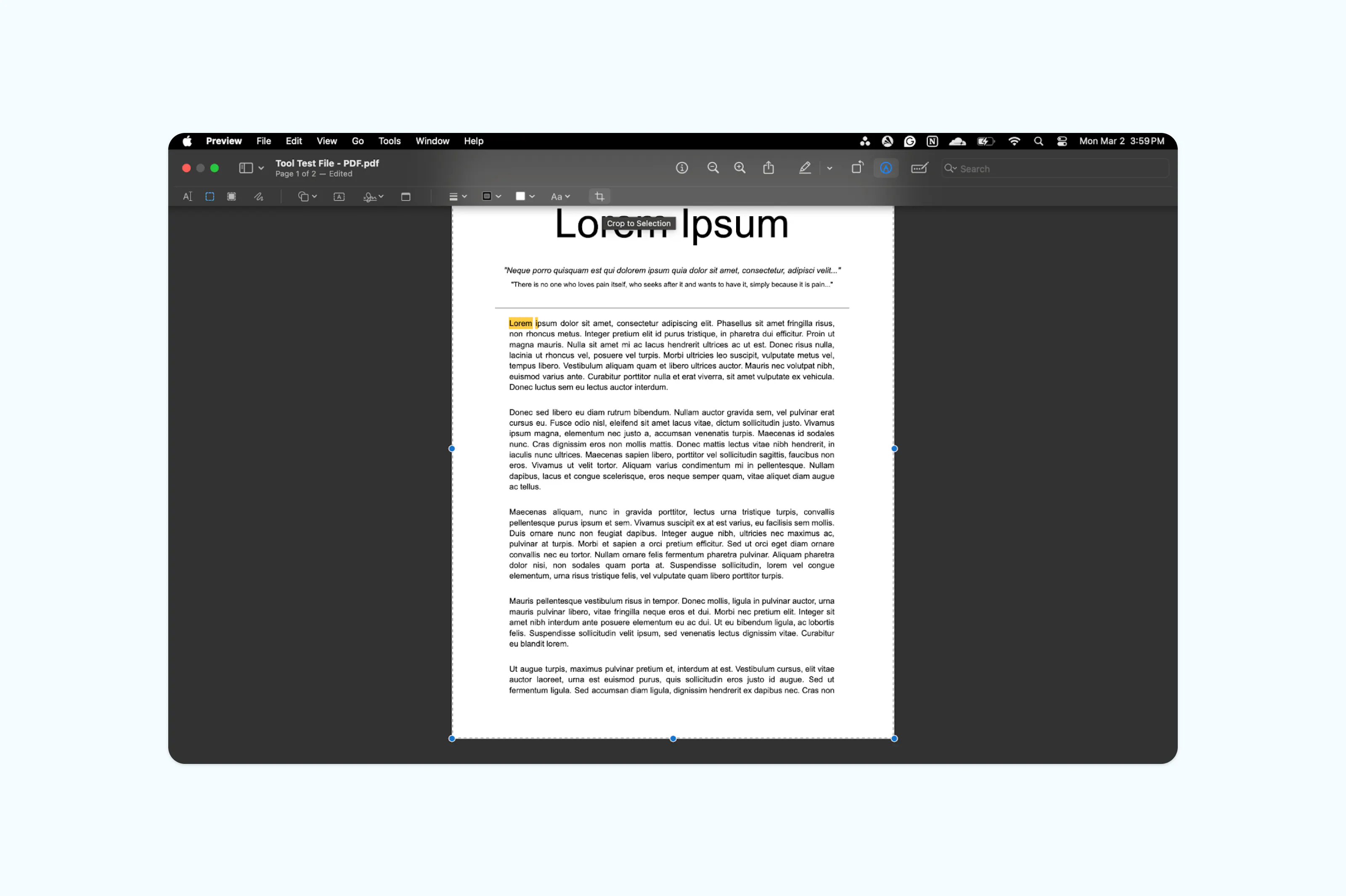
Note: Preview crops the visible area of the page but does not permanently delete hidden content. If you need to permanently remove cropped content for security reasons, consider using a dedicated PDF editor.
Method 2: Crop a PDF using Lumin’s online PDF editor
If you want more precise control or are working across devices, Lumin’s browser-based editor provides additional flexibility.
Here’s how to crop your PDF with Lumin:
- Sign in or Log in to Lumin and upload your PDF to the free Crop PDF tool.
- In the crop settings, choose your page range (All, Current, or Specific).
- Set the Crop type to either "Crop the page box" or "Crop the margins."
- Customize the dimensions according to your liking.
- Click “Apply” to process the changes.
- Download the updated file or save it directly to Google Drive.
Note: Online tools like Lumin are helpful when you need more advanced editing features beyond basic cropping, such as adding annotations, editing text or inserting signatures.
Troubleshooting common issues
If the crop option is grayed out in Preview, make sure you have selected an area using the Rectangular Selection tool first. If the cropped content still appears when shared, remember that Preview hides content rather than removing it. For scanned PDFs, cropping may not improve file size unless the document is re-exported.
If you are cropping a PDF in Preview and the file will not save, the document may be locked or have restricted permissions. This issue can also happen in online editors like Lumin if the PDF is protected. Check the file permissions and ensure the document is not protected before saving your changes. If the PDF is locked, you can upload it to Lumin and use the free unlock tool to open the document and continue editing.
Frequently asked questions
Can I crop a PDF on a Mac without installing software?
Yes. Preview comes pre-installed on macOS and allows basic PDF cropping without downloading anything. You can also use browser-based editors like Lumin if you prefer not to use desktop apps.
Does cropping a PDF reduce file size?
Not always. Cropping in Preview adjusts the visible area but may not significantly reduce file size. To reduce file size, export the file with compression settings.
How do I permanently remove cropped content?
Preview does not permanently delete cropped areas. To fully remove content, use a professional PDF editor that supports content redaction or page trimming.
Can I crop only one page in a multi-page PDF?
Yes. In Preview, select the specific page from the thumbnail sidebar before applying the crop. Online editors like Lumin also let you edit individual pages.
Start cropping your PDF on Mac today
Cropping a PDF on a Mac is straightforward with Preview’s built-in tools. For more advanced adjustments or cross-device access, Lumin provides flexible editing options directly in your browser.
Ready to clean up your document? Crop your PDF in minutes and share a polished version today.

Share this post