
How to convert PDF to Word on Mac
Mac users often run into limitations when converting PDFs to Word. macOS doesn’t come with Microsoft Office preinstalled, and Preview only provides basic PDF tools. On a MacBook Pro, MacBook Air, or iMac, you still need a dependable way to turn PDFs into editable Word documents without losing the layout.
Table of contents
- 1. Method 1: Use Lumin's Mac-optimized converter
- 2. Method 2: Google Drive on Mac
- 3. Frequently asked questions
- 4. Start converting on your Mac today
Share this post
This guide shows you two Mac-friendly methods to convert PDFs to Word, starting with the quickest option that works smoothly in Safari. You’ll also find answers to some of the most frequently asked questions at the end of this blog.
Method 1: Use Lumin's Mac-optimized converter
The fastest way to convert a PDF to Word on a Mac is using Lumin's online tool. It's specifically optimized for macOS and works seamlessly in Safari, eliminating compatibility issues that plague other converters.
How to convert PDF to Word on Mac with Lumin:
- Open Lumin's free PDF to Word converter in Safari.
- Upload or drag your PDF from Finder directly into the upload area.
- Wait a few seconds while Lumin processes your file.
- It will automatically select DOCX as the file format. Choose Save to Google Drive or Save on your computer, then click Save.
Lumin keeps your PDF layout as close to the original as possible, including images, spacing, and overall structure. Some elements, like complex annotations or special formatting, may not transfer perfectly, but your main content stays clear and organized so you can continue editing without starting over.
Method 2: Google Drive on Mac
If you use Google Drive on your Mac, you can convert PDFs through Google Docs. This cloud-based method works directly in Safari without additional software.
Steps for Google Drive conversion on Mac:
- Upload your PDF to Google Drive.
- Right-click and select "Open with" > "Google Docs."
- Wait for the conversion to complete.
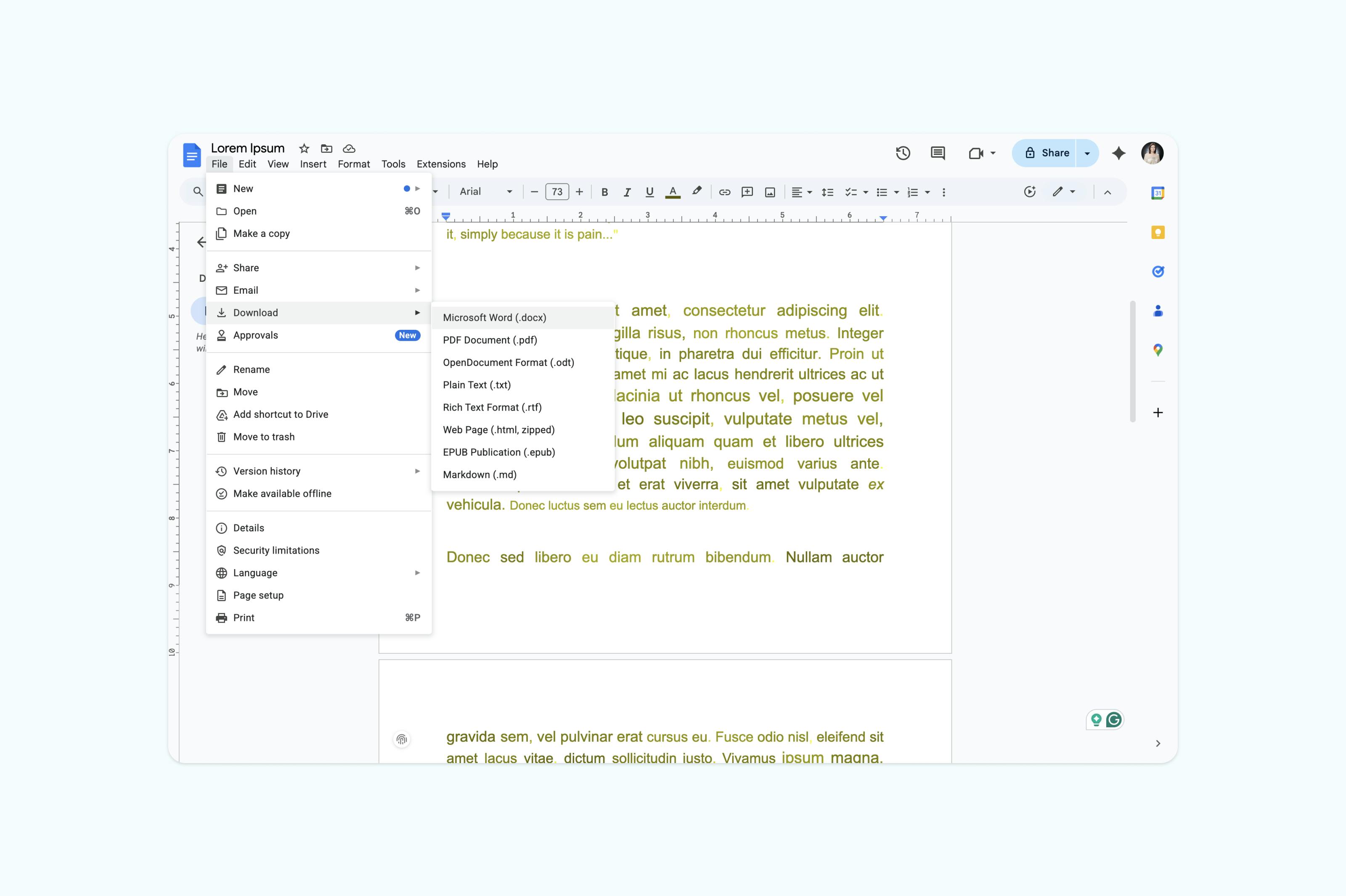
- Go to “File > Download > Microsoft Word (.docx).”
Google Docs often mishandles Mac-specific formatting and Retina images. Complex layouts typically need significant manual correction after conversion.
Frequently asked questions
Can I convert a PDF to Word on Mac without Microsoft Office?
Yes, you don’t need Microsoft Office installed on your Mac. Lumin creates standard .docx files that open in Pages, Google Docs, or any Word-compatible application. The converted files also work perfectly when shared with Windows users.
How do I convert a scanned PDF on a Mac?
Mac’s Preview can’t convert scanned PDFs to editable text. Lumin includes automatic OCR that works especially well with documents scanned using Mac’s built-in scanning features in Preview or Image Capture. Simply upload your scanned PDF, and Lumin extracts the text automatically.
Why can’t I edit PDFs in Preview on Mac?
Preview is designed for viewing and annotating PDFs, not for editing existing content. While you can add text boxes or signatures, you cannot modify the original text. Converting to Word with Lumin gives you full editing capabilities while preserving your Mac document’s formatting.
Does it work on all Mac models?
Lumin works on any Mac running macOS 10.12 Sierra or later, including MacBook Air, MacBook Pro, iMac, Mac mini, and Mac Studio. It is optimized for both Intel and Apple Silicon (M1, M2, M3) processors, ensuring fast conversions across all Mac models.
Can I convert PDFs from Mac Preview?
Yes, PDFs created or edited in Preview convert perfectly with Lumin. This includes documents with annotations, highlights, or signatures in Preview. The converter preserves all these elements in the Word output.
Start converting on your Mac today
Transform your Mac PDFs into editable Word documents in seconds. Lumin's Mac-optimized converter handles everything from simple text documents to complex layouts with Retina images and custom fonts. No software installation, no compatibility issues, just perfect conversions every time.
Convert PDF to Word on your Mac now
Looking for more tips on working with PDFs? Check out these guides:

Share this post